
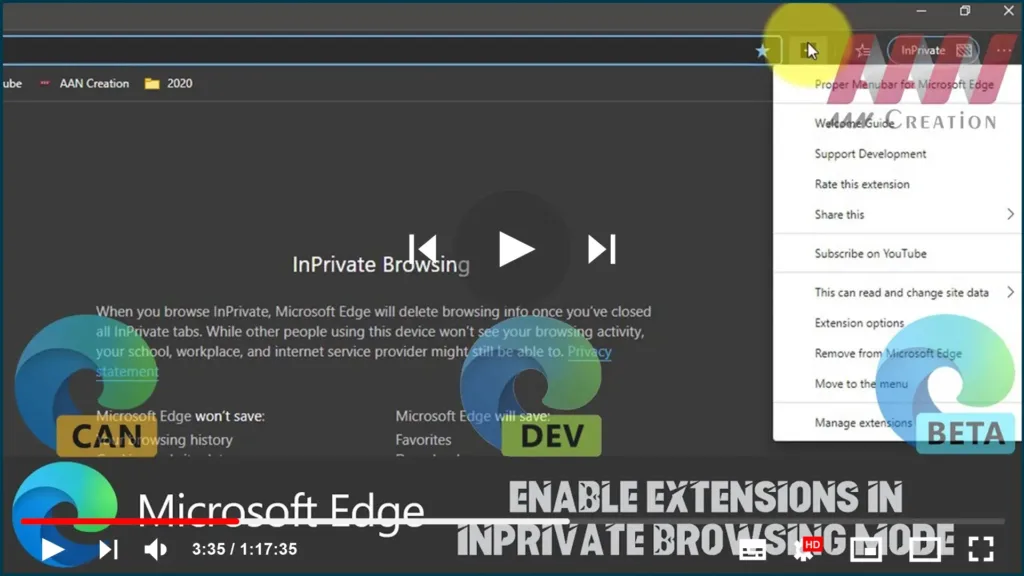

If we have been using Microsoft Edge regularly, we might have missed one feature. There was no option to use installed extensions InPrivate Mode or Incognito Mode in Microsoft Edge Chromium. although, if we have installed Windows 10 version 1803, we will find that we can enable browser extensions in InPrivate mode in Edge without using any Registry options.
Microsoft Edge Chromium has various extensions like LastPass and Evernote Web Clipper. People need various extensions such as LastPass to work in InPrivate mode additionally. For Ex, we want to enter a saved password, but we are browsing in Private mode in Microsoft Edge Chromium. At such times, we need to open the LastPass vault and copy the username and password.
In this guide, you’ll learn the steps to enable extensions in InPrivate browsing mode in Microsoft Edge Chromium.
Use these steps to enable.
01. Open Microsoft Edge Chromium.

02. Right-click the Extension.
03. Select the Manage extension option.
04. you should find an option called Allow for InPrivate browsing. You need to select the corresponding checkbox.

That’s all! Now we will find that extension in the InPrivate browser window additionally.

