
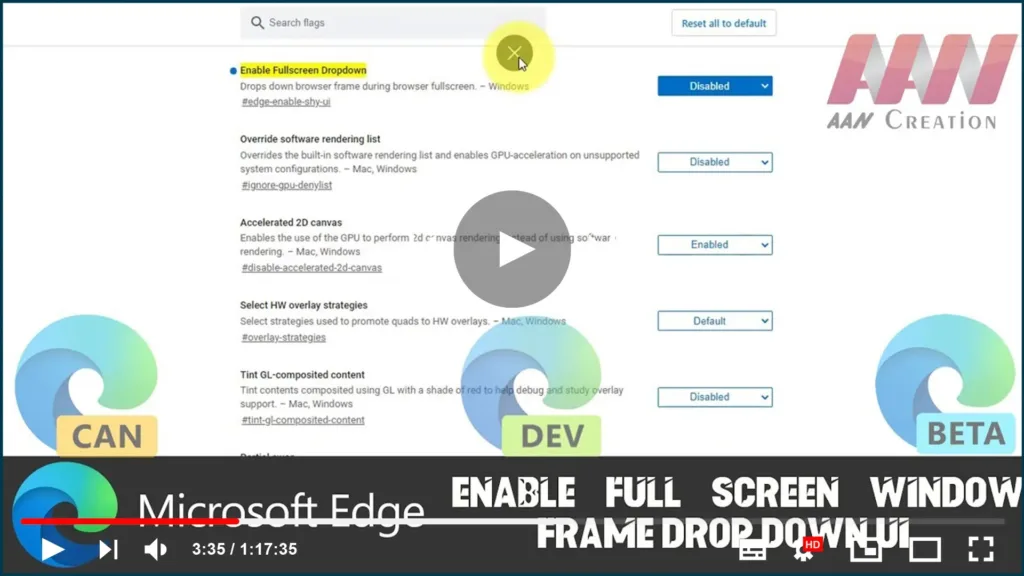

Microsoft has silently added a new feature to the modern Chromium-based Microsoft Edge app. When enabled, it adds a drop-down window frame when in full-screen mode.
One of the new flags adds a drop-down window frame to the browser when in full screen. Currently, if you move your mouse pointer to the top of the full-screen page, Edge shows a big cross button. With this new feature, it will display the window frame as a drop-down UI.
In this guide, you’ll learn the steps To Enable Full-Screen Window Frame Drop Down UI on the Chromium Version of Microsoft Edge.
01. Open Microsoft Edge.
02. Type the path into the address bar of Edge.
03. Set the Enable Fullscreen Dropdown flag to Enabled.

04. Restart the browser when prompted.
05. Now make Edge full screen. You can switch to full-screen mode just by pressing F11.
This works in all browsers, including Microsoft Edge. Move the mouse pointer to the top of the page. You will get the window frame as a drop-down UI.

