
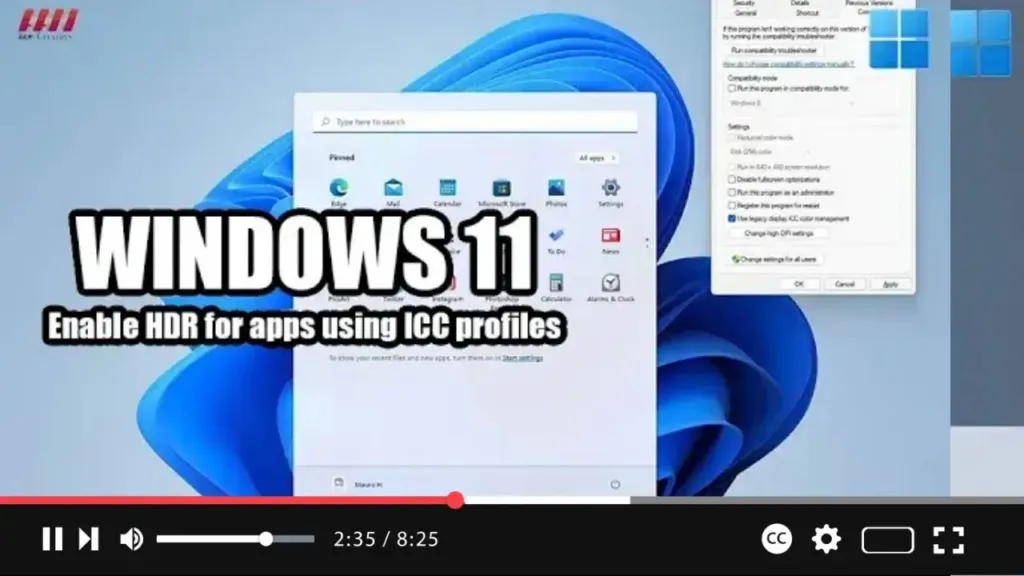

Excited to enhance color accuracy for color-managed applications on your Windows 11 system? Let me guide you through the steps to enable or disable HDR support for these apps:
Step 01: Close the App: Begin by closing the application for which you want to enable or disable HDR support.
Step 02: Access App Properties: Right-click on the app’s icon and select the “Properties” option from the context menu.
Step 03: Navigate to Compatibility Tab: In the Properties window, switch to the “Compatibility” tab.
.webp)
Step 04: Enable HDR Support: Under the “Settings” section, locate and check the “Use legacy display ICC color management” option. This will enable HDR support for the selected application.
Step 05: Apply Changes: Once you’ve checked the option, click on the “Apply” button to save the changes.
Step 06: Confirm Changes: Finally, click on the “OK” button to close the Properties window and confirm the changes.
.webp)
With these steps completed, the selected application will now display more accurate colors and have access to the full gamut from the HDR display when HDR mode is enabled.
Feel free to repeat these steps for other color-managed applications that you want to enhance with HDR support.
Enhance your viewing experience with accurate colors on your HDR-capable display!

