
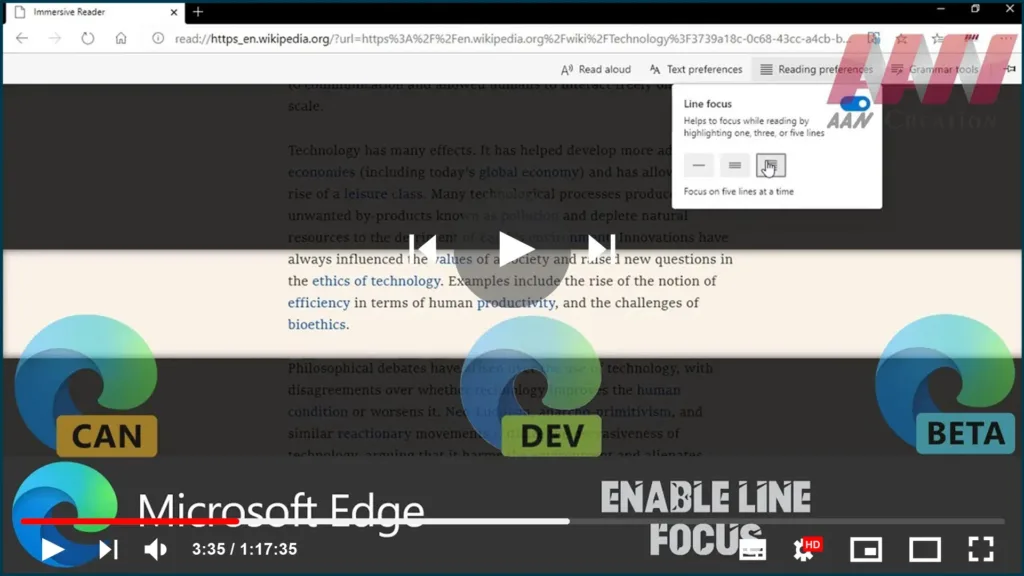

Microsoft Edge browser was designed with the motive to make the browser fully compatible with the modern-day web. some simple tools to preview, save tabs speedily find, manage, and open tabs set aside, without leaving a page. there’s a new update added in the form of a new ‘Line focus’ feature. It uses a reader to stay focused while reading something by highlighting lines.
This habit is particularly useful if, you are noting some key points or pivots in arguments. Line Focus for the Reading View in the Edge Chromium browser has been rolled out for this reason.
In this guide, you’ll learn the steps to Enable Line Focus in Microsoft Edge Chromium.
Use these steps to Enable.
01. Open Microsoft Edge Chromium.
02. Enable the Reading View feature.
03. Select the Paragraph.

04. Right-click and Select the Immersive Reader option.
05. Click on the Reading preferences icon.
06. Turn on Line focus. It is disabled by default.

Under the toggle switch option, select 1, 3, or 5 lines that want to highlight in the reading view.

