
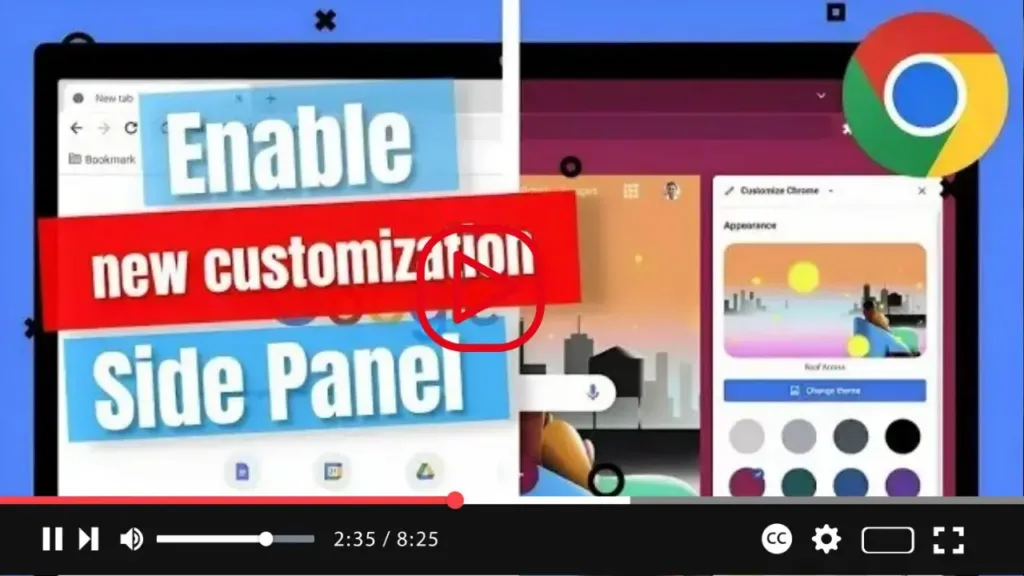

Google Chrome’s Visual Overhaul: A Guide to Customization
Get ready to elevate your browsing experience with the upcoming release of Google Chrome’s updated version for desktop users. Packed with a plethora of visual enhancements, this release promises to provide users with greater flexibility in customizing their browser’s appearance to match their preferences. In this comprehensive guide, we’ll walk you through the steps to enable these exciting new customization settings in the latest Canary version of Chrome.
For years, Chrome has maintained a consistent user interface, but Google is now set to unveil a fresh visual experience. Drawing inspiration from the “Material You” design language found in ChromeOS and Android, this update introduces a blend of classic design elements with modern aesthetics.
One of the most noticeable changes can be seen in the toolbar, where larger buttons with rounded corners take center stage. The menus seamlessly integrate with the browser’s color scheme, creating a more cohesive and visually appealing interface. Additionally, version 119 of Chrome introduces an array of customization options, allowing users to change themes, toggle between light and dark modes, adjust the color scheme, and even synchronize the browser’s accent color with Windows 11.

Moreover, Chrome adapts its appearance when transitioning to dark mode, using subtle dark tones that complement the device’s color scheme or user preferences. Shortcut settings have also been revamped, granting users the ability to enable or disable shortcuts and choose whether to display frequently visited sites or shortcuts on the new tab page.
To embark on this visual journey and unlock the potential of Google Chrome’s new features, follow these simple steps:
- Launch Google Chrome (version 119 or higher).
- Enter the following path in the address bar to access the “flags” experimental settings for enabling the “Customize Chrome Side Panel” feature: chrome://flags/#customize-chrome-side-panel
- Locate the “Customize Chrome Side Panel” setting and select the “Enabled” option.
- (Optional) For additional customization possibilities, access the “Customize Chrome Side Panel Extension Card” setting using the following path: chrome://flags/#customize-chrome-side-panel-extensions-card
- In the “Customize Chrome Side Panel Extension Card” setting, select “Enabled.”
- Click on the “Relaunch” button to apply the changes.
Once you’ve completed these steps, Chrome will relaunch with its refreshed design aesthetics, and you’ll have access to the new “Customize Chrome” settings within the Side Panel. Dive in and personalize your browsing experience with these exciting updates!

