
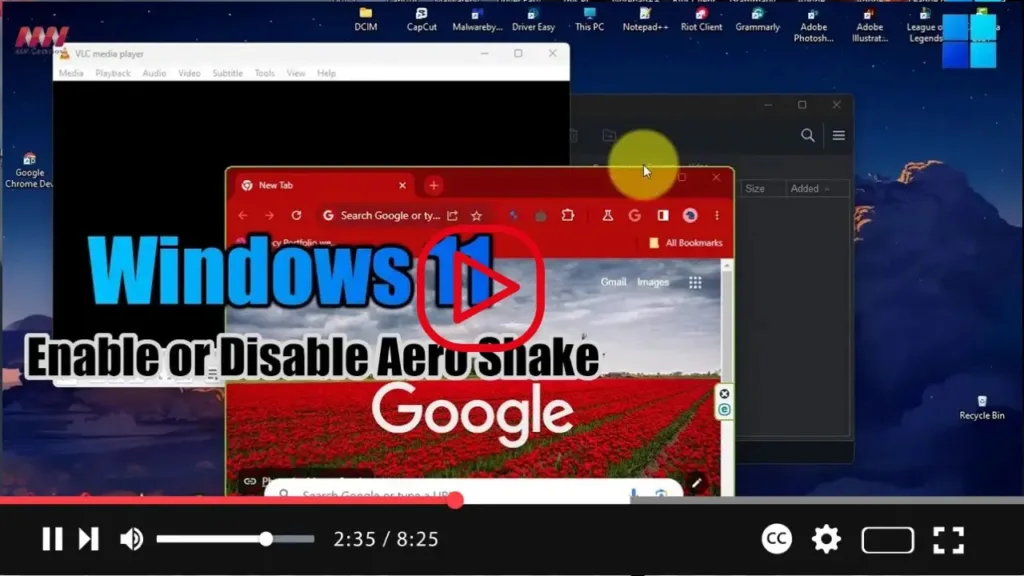

Aero Shake is a convenient feature on Windows 11 that allows users to declutter their desktop by quickly minimizing all open windows except the one they’re actively using. While this feature was enabled by default in previous versions of Windows, it’s now disabled by default in Windows 11. However, you can easily manage this setting through the Windows Settings app. In this guide, we’ll walk you through the steps to enable or disable Aero Shake on Windows 11.
Step-by-Step Guide:
-
Open Settings:
- Click on the Start button located in the taskbar to open the Start menu.
- Select the Settings icon (gear icon) to open the Settings app.
-
Access Multitasking Settings:
- In the Settings window, click on “System” from the list of options.
-
Navigate to Multitasking:
- On the left sidebar, click on “Multitasking” to access multitasking settings.
-
Enable or Disable Aero Shake:
- Scroll down the multitasking settings page until you find the option labeled “Title bar window shake.”
- Toggle the switch next to “Title bar window shake” to either enable or disable Aero Shake according to your preference.
- If the switch is turned on, Aero Shake is enabled, allowing you to shake a window’s title bar to minimize all other windows. If it’s turned off, Aero Shake is disabled, and shaking a window’s title bar will not trigger this action.
-
Confirm Changes:
- Once you’ve made your selection, close the Settings app.
-

Conclusion:
Congratulations! You’ve successfully managed the Aero Shake feature on your Windows 11 device. Whether you prefer to use Aero Shake to quickly minimize windows or prefer to keep it disabled to prevent accidental actions, you can easily toggle this setting through the Windows Settings app. Adjust the setting according to your preference to optimize your desktop experience on Windows 11.

