
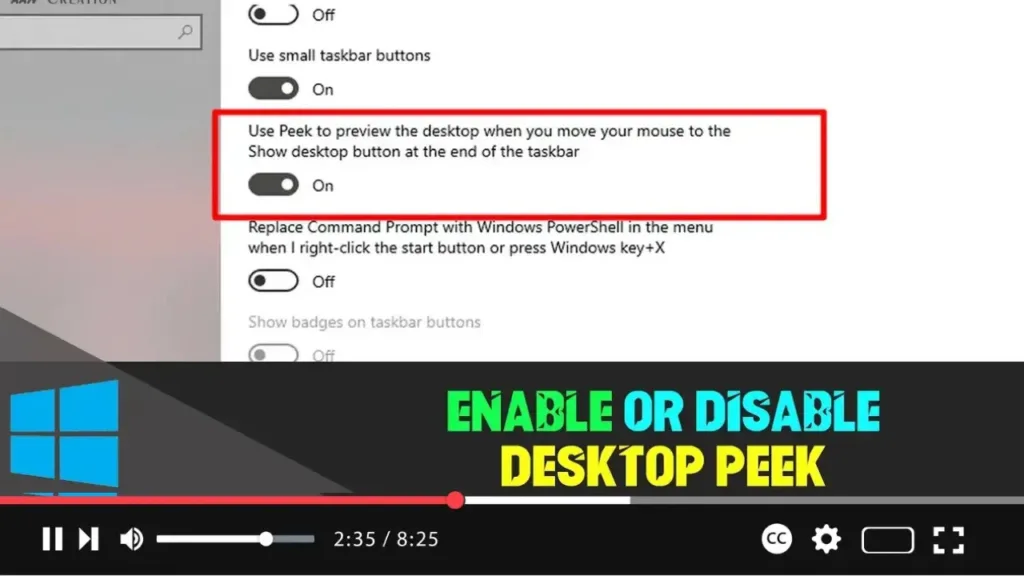

Desktop Peek in Windows 10 provides a convenient way to quickly glance at your desktop without minimizing all open windows. This feature, when enabled, allows you to hover over a specific area on the taskbar to reveal the desktop temporarily. However, if you find this feature distracting or unnecessary, you can easily disable it. Below are the steps to enable or disable Desktop Peek in Windows 10.
Steps to Enable or Disable Desktop Peek:
Step 01: Access Taskbar Settings
Right-click on an empty area of the taskbar at the bottom of your screen. This action will open a context menu.
Step 02: Open Taskbar Settings
From the context menu, select “Taskbar settings.” This will open the Taskbar settings page in the Settings app.
Step 03: Toggle Desktop Peek
Scroll down the Taskbar settings page until you find the “Peek desktop” section. Here, you’ll see a toggle switch labeled “Use peek to preview the desktop.” Toggle this switch to enable or disable Desktop Peek according to your preference.

Step 04: Confirm Changes
Once you’ve toggled the switch to your desired setting, you can close the Settings app. Your changes will be applied immediately.
Additional Information:
-
Customization Options: In addition to enabling or disabling Desktop Peek, you can customize other aspects of the taskbar’s behavior and appearance in the Taskbar settings. Explore options such as taskbar location, icon behaviors, and taskbar buttons.
-
Keyboard Shortcut: Alternatively, you can use the keyboard shortcut “Win + D” to quickly minimize or restore all open windows and view the desktop.
-
Aero Peek: Desktop Peek is a successor to Aero Peek, a feature introduced in earlier versions of Windows. Aero Peek allowed users to hover over the “Show desktop” button on the taskbar to temporarily view the desktop.
By following these steps, you can easily enable or disable Desktop Peek in Windows 10, tailoring your desktop experience to suit your preferences and workflow.

