
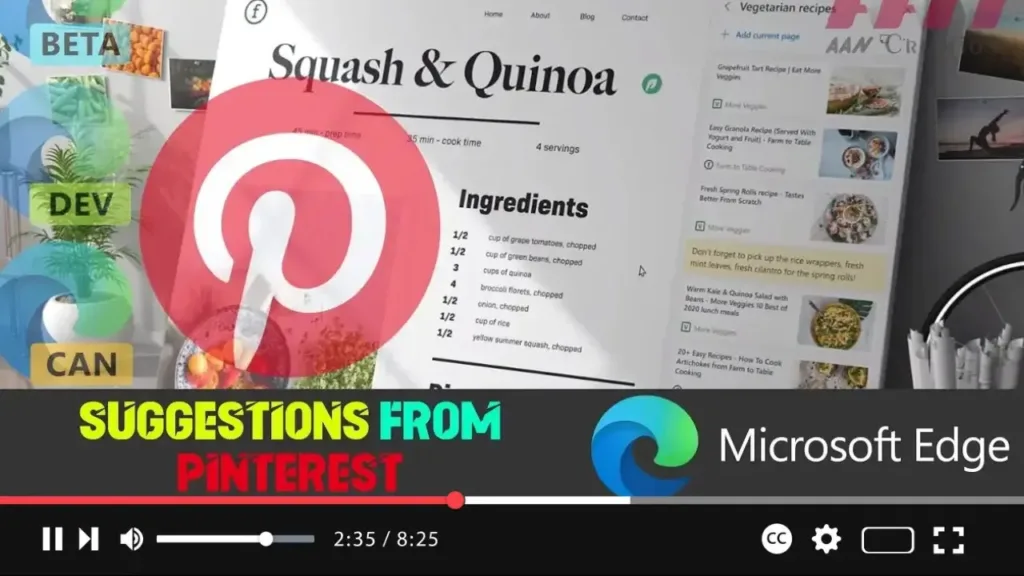

Microsoft Edge, especially in its Canary build, introduces a range of innovative features to enhance user experience. One such feature is the ability to get suggestions from Pinterest in your Collections. This functionality, announced at the Build 2020 online event, is particularly useful for users who frequently use Pinterest for inspiration, ideas, or project planning. When enabled, Microsoft Edge uses your collection titles to search for relevant Pinterest topic pages via Microsoft Bing, making it easier to find related content to enhance your collections.
What Are Collections and Pinterest Suggestions?
The Collections feature in Microsoft Edge allows users to organize content found on the web. You can save web pages, text, images, and other resources into specific collections. With Pinterest integration, you can now receive suggestions from Pinterest directly within your collections, offering relevant ideas and inspiration based on your current project or interest.
When you enable Pinterest suggestions, Edge will automatically suggest content from Pinterest that matches the theme or title of your collection. This can be particularly useful for projects that require visual inspiration or for users who frequently use Pinterest for content curation.
Steps to Enable or Disable Pinterest Suggestions in Microsoft Edge
Follow these steps to manage Pinterest suggestions in your Microsoft Edge browser:
Step 1: Open Microsoft Edge Chromium
- Launch the Microsoft Edge Chromium browser on your Windows device.
Step 2: Access the Settings Menu
- Click on the menu button (three dots) located in the upper-right corner of the browser window.
- From the drop-down menu, select Settings.
.webp)
Step 3: Navigate to Privacy and Services
- Within the Settings menu, click on Privacy, search, and services from the left-hand sidebar.
- Scroll down to find the Services section.
Step 4: Enable or Disable Pinterest Suggestions
- In the Services section, look for the option labeled Show suggestions from Pinterest in Collections.
- To enable Pinterest suggestions, toggle the switch to On.
- To disable Pinterest suggestions, toggle the switch to Off.
Step 5: Apply Changes
- After making your selection, you can simply close the Settings tab. The changes will take effect immediately, and your Collections will either start displaying Pinterest suggestions or stop doing so based on your preference.
.webp)
Additional Information and Tips
- Syncing Collections: If you use Microsoft Edge on multiple devices, your collections (including any Pinterest suggestions) can sync across your devices, ensuring you have access to your organized content wherever you go.
- Exporting Collections: You can also export your collections to Pinterest, creating a new board directly on the Pinterest website. This is especially useful if you are a regular Pinterest user and want to consolidate your ideas and inspirations in one place.
- Privacy Considerations: When you enable Pinterest suggestions, Microsoft Edge uses your collection titles to search for relevant Pinterest topic pages via Microsoft Bing. If privacy is a concern, you may choose to disable this feature.
By following these steps, you can easily manage Pinterest suggestions in your Microsoft Edge Collections, enhancing your browsing and project organization experience. Whether you are gathering ideas for a creative project or organizing research for work, Pinterest integration in Edge can provide valuable additional content to help you get inspired.

