
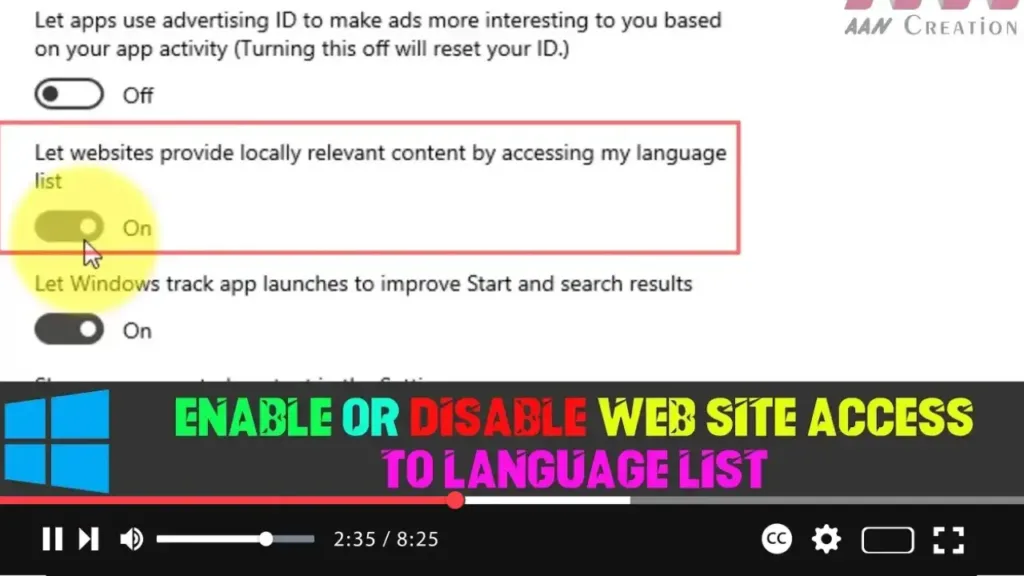

In Windows 10, many websites can automatically detect your installed language preferences to serve you localized content, making browsing more personalized and convenient. This feature eliminates the need to manually adjust language settings for every site. However, if you prefer more privacy or want to prevent websites from accessing your language list, you can easily disable this feature.
Follow these steps to control website access to your language list in Windows 10:
Step-by-Step Guide
Step 01: Open the Settings app. You can do this by clicking the Windows icon on your taskbar and selecting the gear icon, or pressing Windows + I on your keyboard.
Step 02: Once in the Settings menu, select Privacy. This section allows you to manage how your device handles privacy settings, including app permissions, diagnostics, and personalization.
Step 03: In the left panel, click on General under the Privacy section.
Step 04: On the right-hand side, look for the option labeled Let websites provide locally relevant content by accessing my language list. You can now toggle this setting on or off based on your preference:
- Turn it On to allow websites to access your language list and provide localized content.
- Turn it Off to prevent websites from accessing this information.
Step 05: After you’ve made your selection, you can close the Settings app.

Understanding the Feature
By default, this option is enabled to offer a better browsing experience, as it allows websites to automatically load in your preferred language. However, if you’re concerned about privacy or simply prefer websites not accessing this information, disabling it can help limit the data shared with online services.
Conclusion
Customizing your privacy settings in Windows 10 allows you to control how websites interact with your system. Enabling or disabling access to your language list gives you control over whether sites can automatically adjust content to suit your preferences, enhancing both your browsing experience and privacy according to your needs.

