
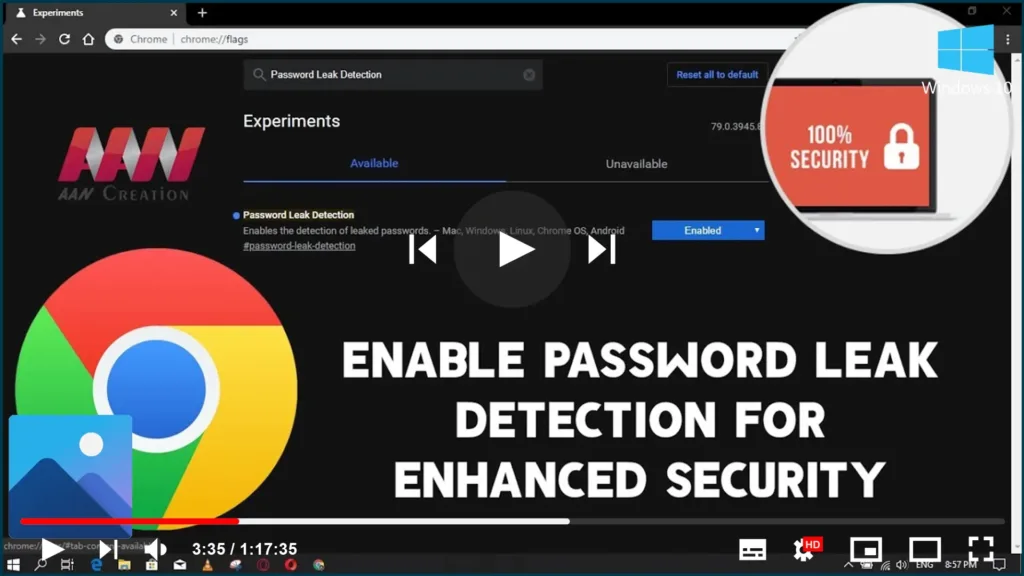

Time and again as an upshot of “Data Breach” several people fall victim to their password leaks – Astoundingly many even do not know about it. The very same set of unconscious people continue to use the same compromised passwords to access other accounts which later end up being misused. Ensuring your passwords are protected is very much your own responsibility, and for that, you will need to try using different passwords for different accounts and change your passwords at regular intervals. In this context, Google Chrome can also help you in enhancing the security of your passwords. You may ask, how? Well, it’s with their incredible ‘Password Leak Detection’ feature.
Password Leak Detection feature in Google Chrome

Very recently, Google added this new security feature to Chrome known to be “Password Leak Detection” or “Password Protection”. This feature came as an official extension at first but was later added to Chrome as part of the browser’s password manager.
This extension was released as a tool to help users avert the use of compromised passwords without being conscious of a leak. When ‘Password Leak Detection’ extension is enabled, Chrome will check if the passwords which the user is using to log into websites are part of data breaches that are known to Google. If any match is spotted, Google immediately sends an alert to the user to change the password.
Chrome has attempted to improve password security and even proactive password leak protection by making ‘Password Leak Detection’ a built-in feature.
Enable Password Leak Detection in Chrome
(adsbygoogle = window.adsbygoogle || []).push({});
To enable ‘Password Leak Detection’ feature, follow these steps:
01. Open, the Google Chrome browser
02. In the Chrome address bar type chrome://flags in the address and hit ‘Enter’
Or type ‘chrome://flags/#password-leak-detection’ into your browser address bar to directly go to this feature.

03. In the ‘flags’ page, search for ‘Password Leak Detection’.
04. Now, change the ‘Default’ option to ‘Enabled’.
05. Once ‘Enabled’ relaunch the Google Chrome Browser by hitting the ‘Relaunch’ button to activate the Leak Detection feature.
To enable this feature on your Chrome Browser, first ensure that you are running Chrome 78 or the most recent version. You can verify this by clicking the three-dot icon in the upper-right corner of your browser, then selecting ‘Help,’ and then selecting ‘About Google Chrome.’ If your Chrome browser is not running the most recent version, it will download it and prompt you to update.
Once you’ve completed these steps, the Chrome web browser will actively detect and notify you immediately if any of your login information has been compromised or has been used in a data breach. If you come across a password that Google knows has been compromised, make sure to change it right away.

