
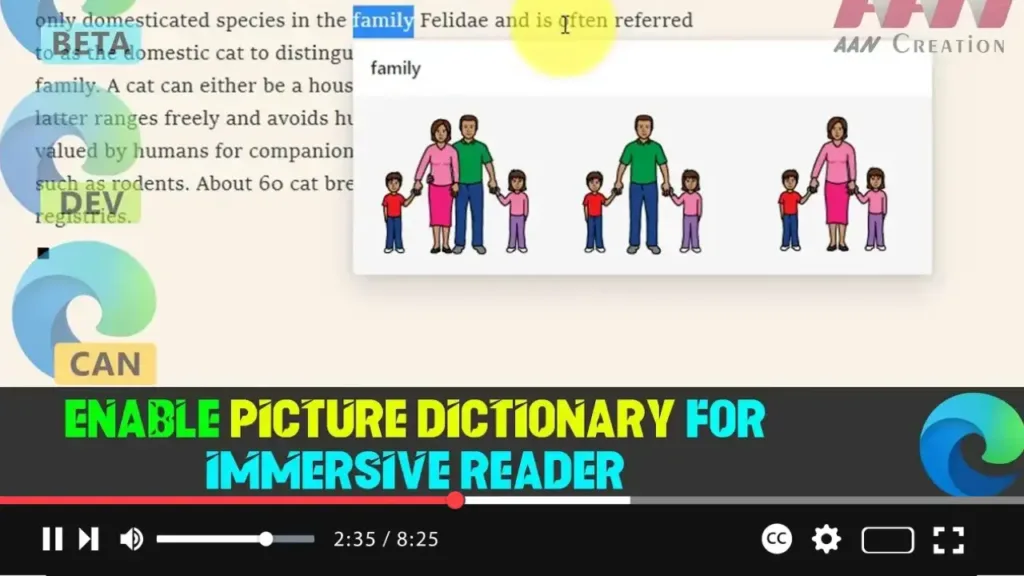

The Canary build of Microsoft Edge Chromium introduces an exciting new feature called the Picture Dictionary. This feature displays expressive images that provide a visual definition for chosen words, enhancing the reading experience within the Immersive Reader mode. Although the Picture Dictionary is hidden behind a feature flag, it’s easy to enable and use.
Here’s a step-by-step guide to enable the Picture Dictionary in Microsoft Edge Chromium.
Why Enable the Picture Dictionary?
- Enhances Understanding: Words paired with images improve comprehension, especially for young learners or non-native speakers.
- Visual Learning: It’s ideal for people who learn better through visuals, making text more engaging.
- Interactive Reading: This feature turns reading into a more interactive and enjoyable activity.
.webp)
Steps to Enable Picture Dictionary for Immersive Reader in Microsoft Edge Chromium
Step 01: Open Microsoft Edge Canary
- Open the Microsoft Edge Canary browser on your device.
Step 02: Access Edge Flags
-
In the address bar, type the following and press Enter:
edge://flags/#edge-reading-view-picture-dictionary
.webp)
Step 03: Enable Picture Dictionary Flag
- Locate the “Picture Dictionary in Immersive Reader” flag.
- Click the drop-down menu next to it and select Enabled.
Step 04: Restart Microsoft Edge
- After enabling the flag, restart the browser to apply changes.
Testing the Picture Dictionary Feature
Step 05: Open a Web Page and Launch Immersive Reader
- Navigate to any web page that has text content.
- To enable Immersive Reader, select the desired text, right-click, and choose Open in Immersive Reader.
Step 06: Enable Picture Dictionary in Immersive Reader
- In the Immersive Reader interface, click the Reading Preferences button.
- Under Reading Preferences, toggle on the option for Picture Dictionary.
.webp)
Step 07: Use the Picture Dictionary
- Select any word on the page, and the Picture Dictionary will display a visual representation of the selected word, giving you an image-based definition.
Final Thoughts
The Picture Dictionary in Microsoft Edge Canary is a powerful tool for making reading more engaging and accessible. It’s perfect for students, language learners, and anyone who benefits from visual learning. This feature offers a richer experience, turning words into easy-to-understand images within the Immersive Reader mode.

