
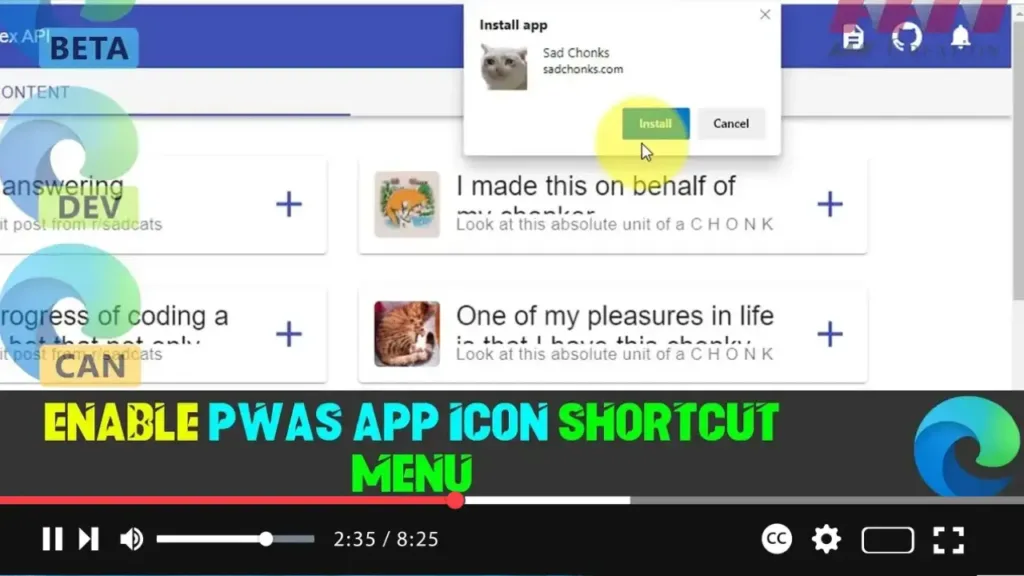

Progressive Web Applications (PWAs) are gaining traction as they offer a seamless app-like experience on the web. Recently, both Google Chrome and Microsoft Edge Chromium have introduced a feature that allows PWAs to have a shortcut menu entry for their tasks. This feature enhances the usability of PWAs by providing quick access to certain functions directly from the app icon, making them even more convenient.
When you enable this feature, right-clicking on a PWA pinned to the taskbar will display a menu with actions defined by the application. This capability is particularly useful for quickly accessing specific app features without opening the full application. The feature is currently experimental and can be enabled using flags in Microsoft Edge.
Steps to Enable PWAs App Icon Shortcut Menu in Microsoft Edge Chromium
Step 01: Open Microsoft Edge
- Launch the Microsoft Edge Chromium browser on your Windows device.
Step 02: Access the Experimental Flags Page
- Type the following path into the Edge address bar and press Enter:
edge://flags/#enable-desktop-pwas-app-icon-shortcuts-menu
.webp)
Step 03: Enable the Desktop PWAs App Icon Shortcuts Menu
- On the Experiments page, you’ll see a flag labeled Desktop PWAs app icon shortcuts menu.
- Click the drop-down menu next to this flag and select Enabled.
Step 04: Restart Microsoft Edge
- After enabling the flag, a Restart button will appear at the bottom of the page.
- Click Restart to relaunch the browser, or manually close and reopen Microsoft Edge to apply the changes.
Testing the PWAs App Icon Shortcut Menu Feature
-
Install a Progressive Web App:
- To test the new shortcut menu feature, visit a website that supports PWAs (like Twitter, Google Maps, or any other PWA-enabled site).
- Click on the Install button in the address bar or through the menu (three dots) by selecting Apps > Install this site as an app.
-
Pin the PWA to the Taskbar:
- After installation, pin the PWA to the taskbar for easy access.
-
Access the Shortcut Menu:
- Right-click on the pinned PWA icon in the taskbar. You should now see a shortcut menu with various actions or features defined by the PWA.
.webp)
Benefits of the PWAs App Icon Shortcut Menu
- Enhanced Accessibility: Provides quick access to specific app functions without the need to open the full application.
- Improved Workflow: Streamlines common tasks, making it easier to interact with web applications.
- Consistent User Experience: Mimics the behavior of native apps, making PWAs more familiar and user-friendly.
Conclusion
Enabling the PWAs App Icon Shortcut Menu in Microsoft Edge Chromium allows for a more efficient and streamlined user experience by providing direct access to key features of your favorite web applications. This enhancement aligns with Google’s push to make PWAs more integrated and powerful, offering users and developers more flexibility and functionality.
By following the steps outlined above, you can quickly enable this experimental feature and take advantage of the added convenience of the PWAs app icon shortcut menu.

