
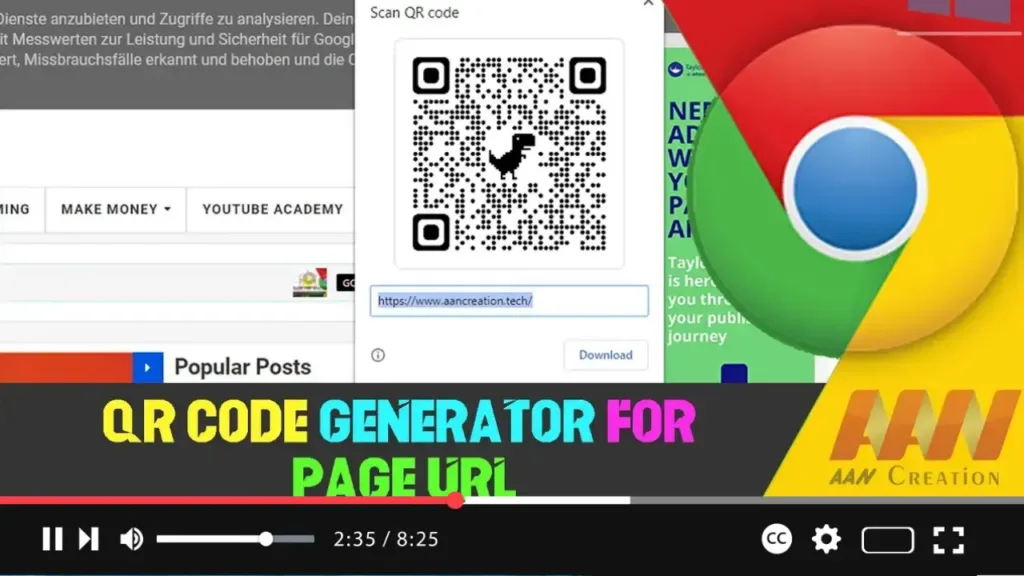

Google Chrome includes a handy QR code generator that allows you to create a QR code for any page URL. This can be useful for quickly sharing links with mobile devices or other users. Here’s how to enable and use the QR code generator in Google Chrome.
Introduction
The QR code generator in Google Chrome is a built-in feature that makes it easy to create and share QR codes for any webpage. This feature is particularly useful for quickly sharing URLs without typing or copying links manually.
Steps to Enable QR Code Generator for Page URL in Google Chrome
Step 01: Open Google Chrome
Launch Google Chrome on your computer.
Step 02: Access Chrome Flags
.webp)
To enable the QR code generator, you need to access Chrome’s experimental features (flags).
- Type
chrome://flags/in the address bar and press Enter.
Step 03: Search for QR Code Flag
In the search box at the top of the Flags page, type “QR code.”
Step 04: Enable QR Code Flag
Find the flag named “Enable sharing page via QR Code” or “Sharing Hub in Omnibox” (the name may vary depending on your Chrome version).
- Click the dropdown menu next to the flag and select “Enabled.”
Step 05: Relaunch Google Chrome
After enabling the flag, click the “Relaunch” button that appears at the bottom of the Chrome Flags page to restart the browser and apply the changes.
Steps to Use the QR Code Generator
Step 01: Open the Webpage
Navigate to the webpage you want to share using a QR code.
Step 02: Generate the QR Code
- Click on the URL bar to highlight the webpage address.
- Look for the QR code icon (a small square icon) on the right side of the address bar. Click on this icon.
- Alternatively, you can right-click on the page and select “Create QR code for this page” from the context menu.
Step 03: Download or Share the QR Code
- A popup will appear showing the generated QR code.
- You can click the “Download” button to save the QR code as a PNG file.
- Scan the QR code with a mobile device to instantly access the page.
.webp)
Additional Information
Compatibility: Ensure you are using the latest version of Google Chrome, as older versions may not support this feature.
Mobile Version: On mobile versions of Chrome, the QR code generator is often enabled by default. You can access it by opening the menu (three dots) and selecting “Share,” then “QR Code.”
Use Cases: The QR code generator is useful for quickly sharing URLs during presentations, in printed materials, or via other screens where manual URL entry is inconvenient.
Privacy: The QR code only contains the URL of the page and does not include any personal or browsing data.
By following these steps, you can enable and use the QR code generator in Google Chrome, making it easier to share web pages quickly and efficiently.

