
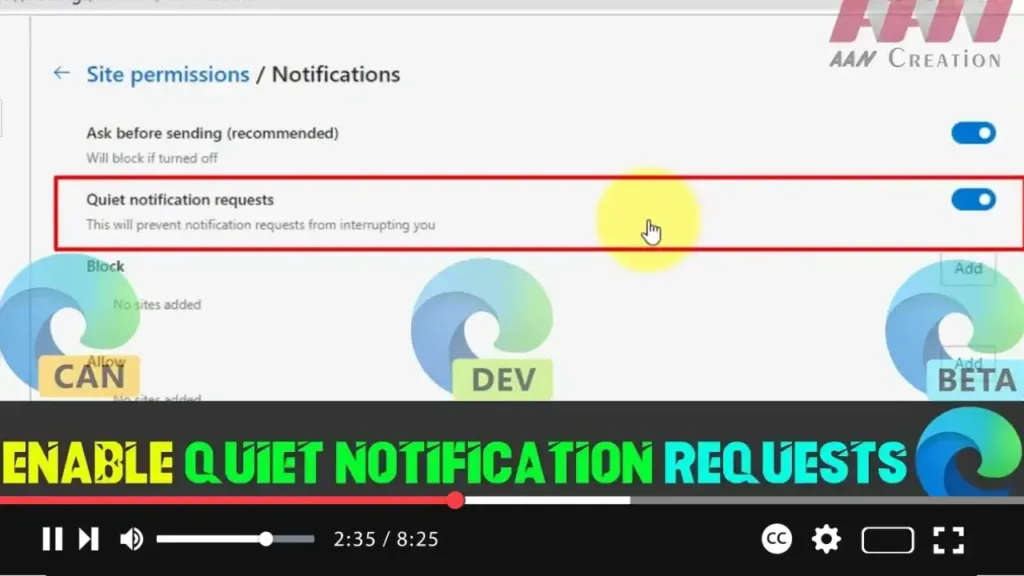

Web notifications can be useful, but sometimes they get out of hand, especially when websites constantly ask for permission to send notifications. Fortunately, Microsoft Edge has introduced a helpful feature called Quiet Notification Requests, which minimizes the number of notification permission pop-ups you see. This new system is designed to suppress intrusive requests, especially from sites that try to subscribe you without much interaction.
If you’re tired of constant pop-ups, enabling Quiet Notification Requests will streamline your browsing experience, letting you avoid distractions and focus on the content that matters.
Why Use Quiet Notification Requests?
In today’s digital landscape, many websites want to send push notifications, but most users find them annoying. Here’s why you might want to enable quiet notifications:
- Less Disruption: No more annoying permission pop-ups while browsing.
- Increased Productivity: Fewer interruptions mean you can focus on your tasks or content without constant distractions.
- Control: You get more control over which websites can show notifications without them sneaking in through aggressive pop-ups.
.webp)
Let’s dive into how you can easily enable this feature on Microsoft Edge.
Steps to Enable Quiet Notification Requests in Microsoft Edge
Step 01: Open Microsoft Edge
- Launch the Microsoft Edge browser on your computer.
Step 02: Open the Menu
- Click on the three dots in the upper-right corner of the screen to open the menu. Alternatively, you can press Alt + F to access the menu quickly.
Step 03: Go to Settings
- In the drop-down menu, scroll down and click on Settings.
Step 04: Navigate to Site Permissions
- On the Settings page, you will see a list of categories on the left. Click on Site Permissions to adjust the permissions for different website interactions.
.webp)
Step 05: Select Notifications
- On the right-hand side, find the Notifications option under Permissions and click on it. This section controls how websites can request notification permissions.
Step 06: Turn On Quiet Notification Requests
- In the Notifications settings, toggle the Quiet notification requests switch to turn it on. This will suppress intrusive notification prompts from most websites, making your browsing experience smoother and more enjoyable.
Additional Info: What Happens When You Enable Quiet Notification Requests?
When this feature is enabled, the browser will minimize the notification permission prompts to a more subtle display. Instead of an aggressive pop-up, you’ll see a quieter, less intrusive request. This lets you browse with fewer interruptions, and you can still choose to allow notifications when needed by interacting with the request at your own convenience.
.webp)
Final Thoughts
Notifications can be helpful, but they can also be overwhelming if not managed properly. With Quiet Notification Requests, Microsoft Edge has taken a significant step toward improving user experience by reducing notification clutter. It’s a quick and easy setting to enable, and it helps you browse the web more efficiently, focusing on what matters.
Give it a try and see how much smoother your browsing experience becomes without constant interruptions!

