
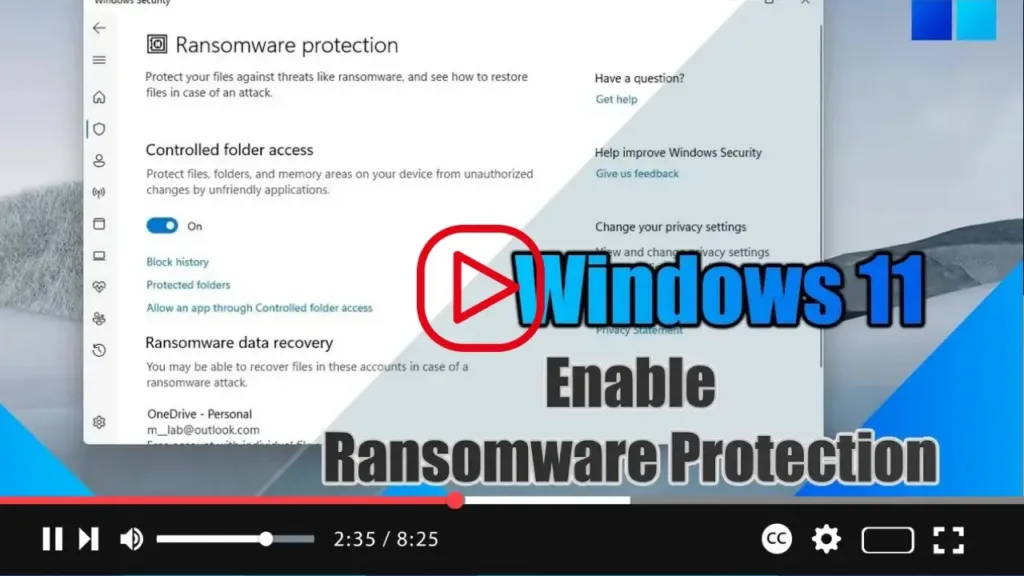

On Windows 11, you can enable the “Controlled folder access” feature to protect your files against ransomware attacks. Microsoft Defender Antivirus is your default security solution to protect your computer against viruses, spyware, rootkits, and many other types of malware. However, you probably didn’t know that the anti-malware solution also includes an option to protect your files from ransomware, but you need to enable the feature manually.
Controlled folder access is an anti-ransomware feature that monitors the changes that apps make to your files. If an app tries to modify the files inside a protected folder and the app is blacklisted, you’ll get notified about the suspicious activity.
.webp)
In this guide, you will learn the steps to enable Controlled folder access using Microsoft Defender Antivirus to protect Windows 11 and files against ransomware, use these steps:
Step 01: Open Windows Security and Click on Virus & threat protection.
Step 02: Under the “Ransomware protection” section, click the Manage ransomware protection option.
.webp)
Step 03: Turn on the “Controlled folder access” toggle switch.
Once you complete the steps, Microsoft Defender Antivirus will monitor the protected folders as applications try to modify your files. If suspicious activity occurs, you’ll get a notification about the threat.

