
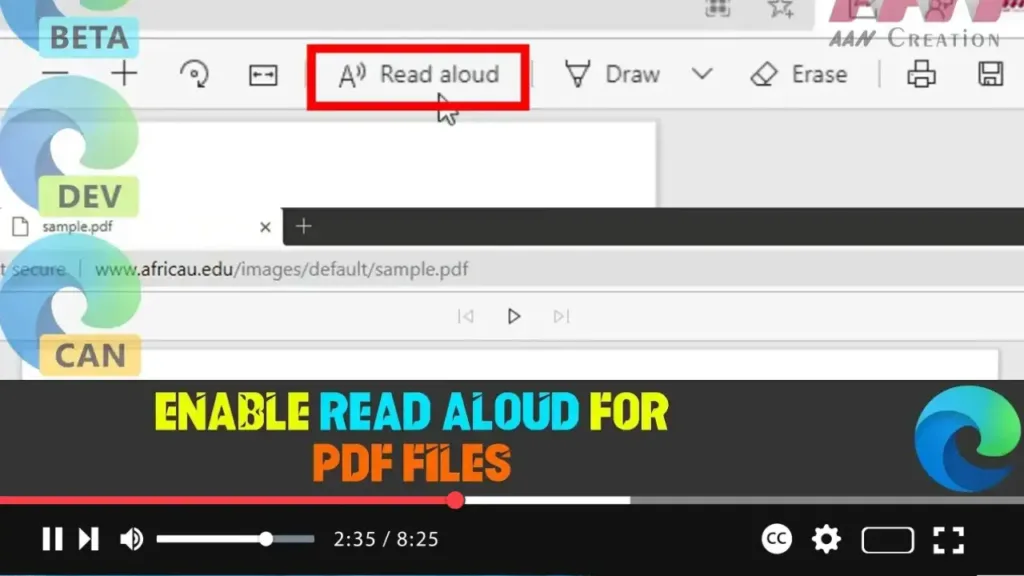

Microsoft Edge Chromium has enhanced its built-in Read Aloud feature, allowing users to have PDF content read aloud directly in the browser. This feature is particularly useful for accessibility purposes, such as assisting users with visual impairments or those who prefer auditory learning.
The Read Aloud feature for PDFs is currently experimental and hidden behind a flag in Microsoft Edge. You can enable it manually by following the steps below.
Steps to Enable Read Aloud for PDF Files in Microsoft Edge Chromium
Step 01: Open Microsoft Edge
- Start by launching the Microsoft Edge browser on your computer.
Step 02: Access the Experimental Features Page
- In the Edge address bar, type the following URL and press Enter:
edge://flags/#edge-read-aloud-pdf
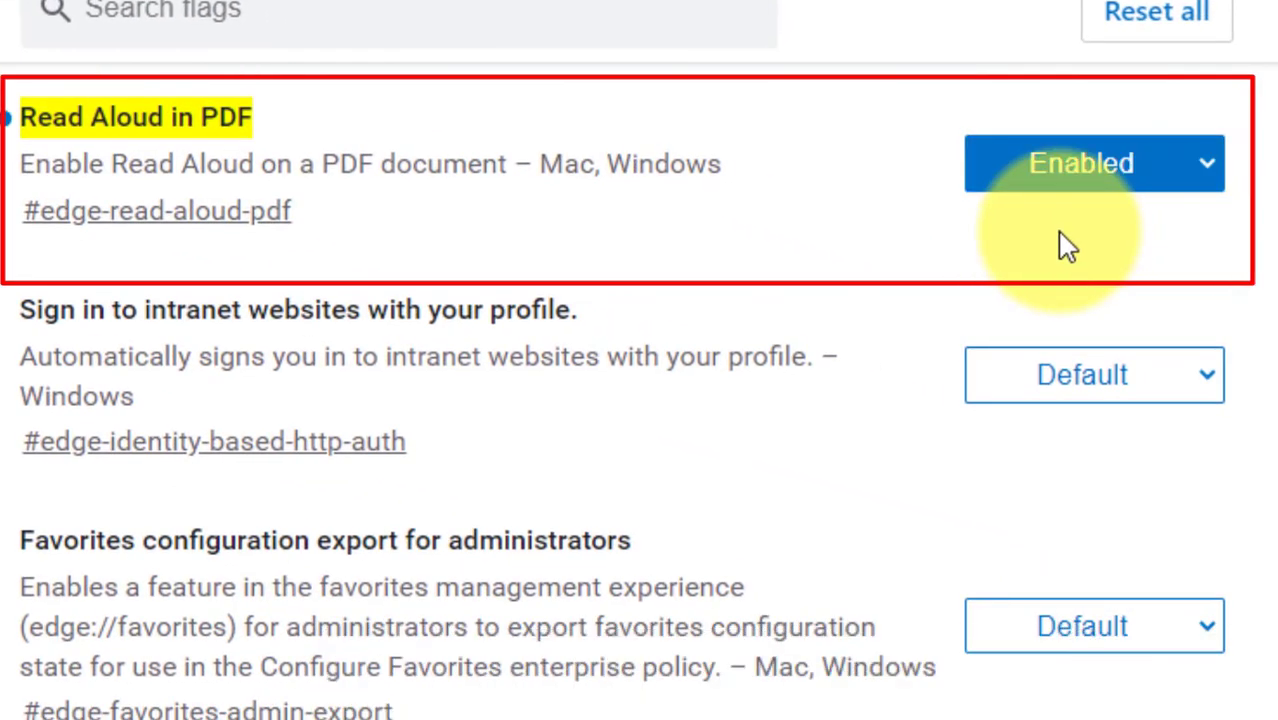
Step 03: Enable the Read Aloud in PDF Option
- On the Experiments page, you will see various experimental features (flags) listed.
- Locate the flag named Read Aloud in PDF.
- Click the drop-down menu next to the Read Aloud in PDF flag and select Enabled.
Step 04: Restart Microsoft Edge
- After enabling the flag, you will need to restart Microsoft Edge for the changes to take effect.
- Click the Restart button that appears at the bottom of the page or manually close and reopen the browser.
Step 05: Use the Read Aloud Feature for PDF Files
- Once Microsoft Edge has restarted, open any PDF file in the browser.
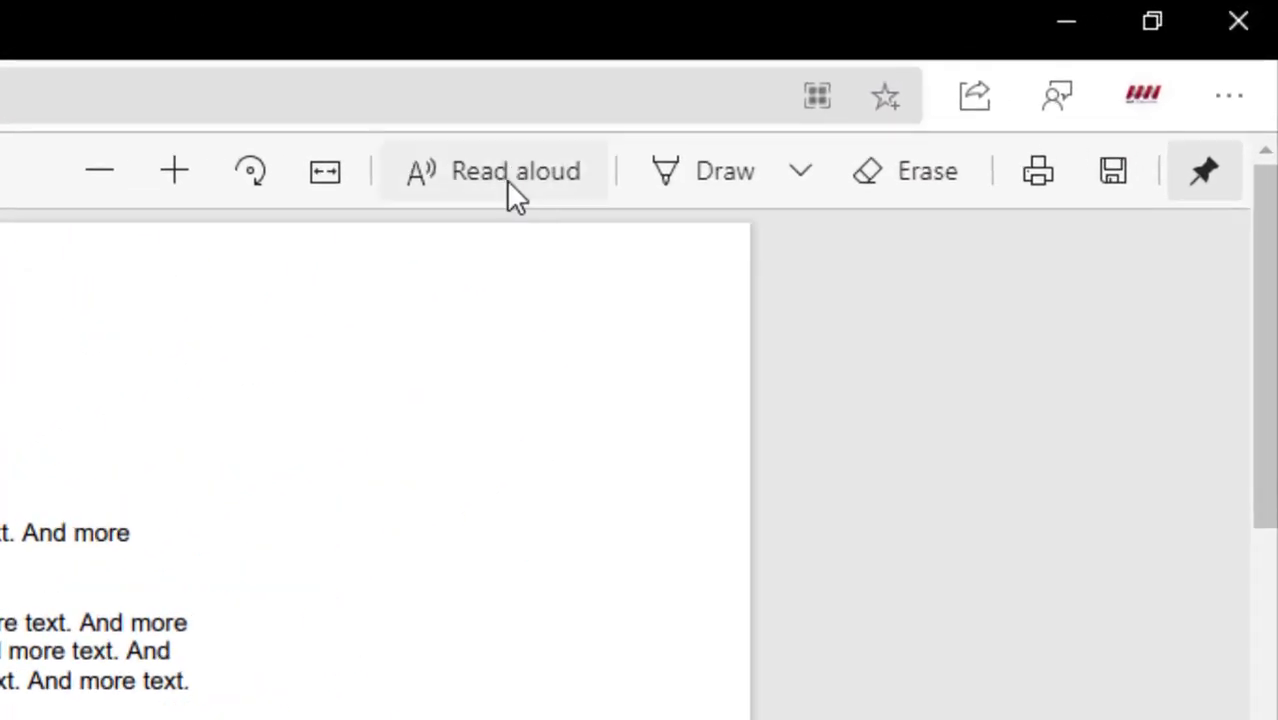
- Click on the Read Aloud button, typically located in the toolbar at the top of the window.
- The Read Aloud feature will start reading the text from the PDF file.
Customizing the Read Aloud Experience
- Voice Selection: Choose from different voice options to find one that suits your preference.
- Reading Speed: Adjust the reading speed to make it faster or slower according to your needs.
- Control Playback: Use the play, pause, and navigation controls to manage the reading session.
Benefits of Using the Read Aloud Feature in Microsoft Edge
- Improved Accessibility: Helps users with visual impairments or reading difficulties by converting text to speech.
- Enhanced Productivity: Allows for multitasking while listening to the content, boosting productivity.
- Auditory Learning: Supports users who prefer listening over reading.
Conclusion
Enabling the Read Aloud feature for PDF files in Microsoft Edge Chromium provides an enhanced browsing experience by making text accessible through audio. This feature can be especially beneficial for users who need assistance due to visual impairments or who prefer auditory learning methods. Follow the steps outlined above to activate this feature and enjoy a more versatile reading experience in Microsoft Edge.

