
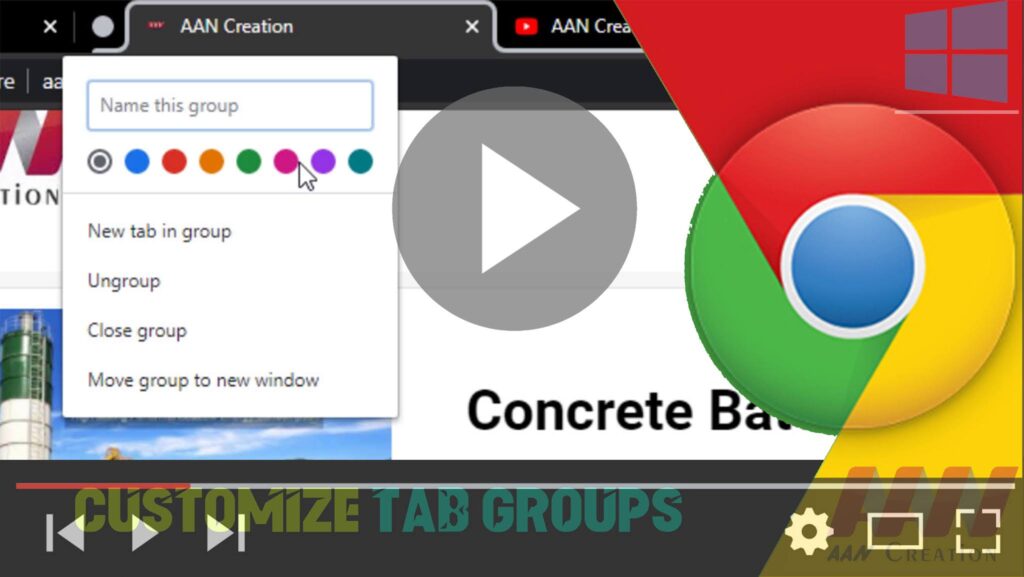

Although Google Chrome can handle a lot of tabs, after so many open pages, it
becomes difficult to manage them and harder to keep track of whatever you’re
doing on the web.
Tab Groups is a new feature that allows you to easily create groups of open tabs to better organize pages that you’re viewing. However, the features are disabled by default, and you must dive into the experimental settings to
enable it.
In this guide, you’ll learn the steps to enable and start using Tab Groups to
better manage and organize your open tabs in Chrome on Windows 10. Use these
steps:
(adsbygoogle = window.adsbygoogle || []).push({});
How to enable Tab Groups in Chrome
01. Open Google Chrome.
02. Type the following path in the address bar & press Enter:
chrome://flags/#tab-groups

03. Under the “Tab Groups” section, use the drop-down menu on the right and
select Enabled (or Disabled to turn the feature off).
04. Click the Relaunch button.
Once you complete the steps, you can start creating groups to better manage
your open tabs.
How to use Tab Groups in Chrome
01. Open Google Chrome.
02. Open some websites.
03. Right-click a tab and select the Add to new group option.
04. Click the colored circular button to customize the group.
05. Specify the name of the group of tabs. For example, News, Videos,
Research, etc.
06. Select the color to better identify the group.
07. Right-click other tabs and select the Add to existing group menu and
choose the group you want to add to the tab.
08. (Optional) Right-click a tab and select the Add to new group option to
create another group.
.webp)
After you complete the steps, you’ll have better control and organization over
your open tabs.
When using Tab Groups, you can drag and drop tabs around to move them to
another group or you can right-click a tab and select the Add to exist
group menu and choose the group you want to move it to.
If you no longer need the tab in a group, right-click the tab and select the
Remove from group option.
To remove all the tabs, click the colored dot and select the Ungroup option,
or Close group to close all the tabs of a group. Or you can always close each tab individually.
.webp)
If you don’t like the current order of the groups, you can click and hold the
colored dot icon to rearrange the order of the groups within the window.
(adsbygoogle = window.adsbygoogle || []).push({});
While Tab Groups is a useful feature to manage open pages, remember that the feature is only available during the current session, once you close and
reopen Google Chrome, the groups will be removed.

