
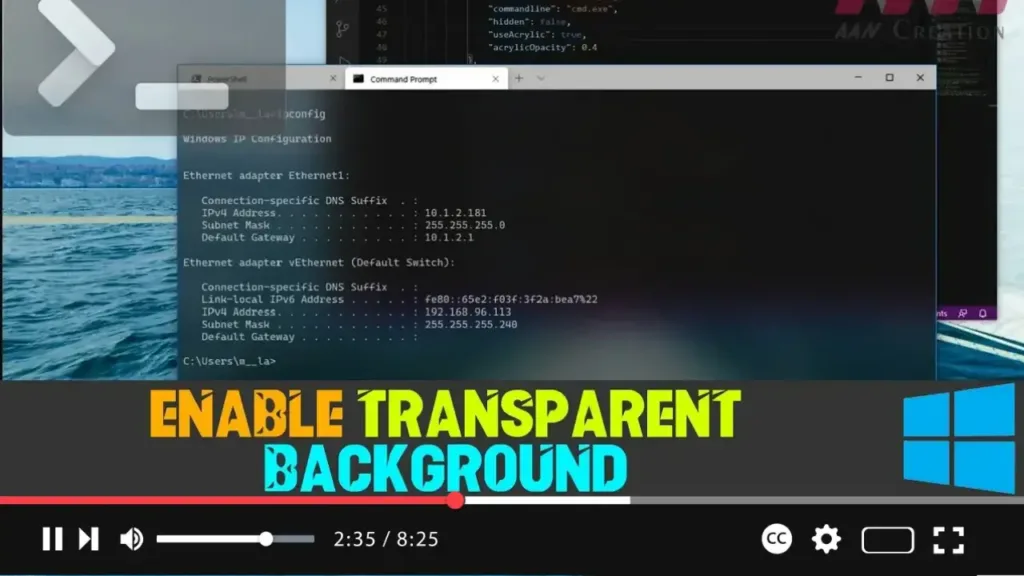

Windows Terminal is the primary command-line tool in Windows 10, offering support for Command Prompt, PowerShell, and Linux. It is highly customizable, allowing users to tailor the terminal to their preferences. One popular customization is the ability to set a transparent background, giving the terminal a modern, sleek look with added blur and noise textures as part of the Microsoft Fluent Design System.
Steps to Enable Transparent Background on Windows Terminal
Step 01: Open Windows Terminal
- Launch the Windows Terminal on your Windows 10 device. You can do this by searching for “Windows Terminal” in the Start menu.
Step 02: Access the Settings Menu
- Click the menu (down-arrow) button next to any open tab within the terminal.
- From the drop-down menu, select Settings. This will open the settings file in your default text editor (typically Notepad or Visual Studio Code).
Step 03: Modify the Settings File
- Locate the “defaults” section within the settings file. This section controls the default appearance and behavior for all profiles in Windows Terminal.
- To enable transparency, copy and paste the following command within the “defaults” section:
"useAcrylic": true, "acrylicOpacity": 0.5 - The
"acrylicOpacity"value can be adjusted to set the desired level of transparency. The value ranges from0.0(completely transparent) to1.0(completely opaque). A setting of0.5provides a moderate level of transparency.

Step 04: Save the Settings File
- After pasting the command, save the file to apply the changes. The transparency effect should take effect immediately after saving.
Customization Tips
-
Profile-Specific Transparency: If you prefer transparency only for specific profiles (e.g., PowerShell or Command Prompt), place the
"useAcrylic"and"acrylicOpacity"settings within the respective profile section in the settings file instead of the “defaults” section. -
Adjusting Opacity: Experiment with different
"acrylicOpacity"values to find the level of transparency that works best for you. Lower values increase transparency, while higher values decrease it. -
Combining with Background Images: You can combine transparency with a custom background image for an even more personalized terminal. This can be done by adding the
"backgroundImage"setting within the profile section.
Conclusion
By following these steps, you can enable a transparent background in Windows Terminal, enhancing both the functionality and appearance of your command-line interface. This customization option not only improves the aesthetic appeal of the terminal but also helps create a more immersive and focused environment for your work.

