
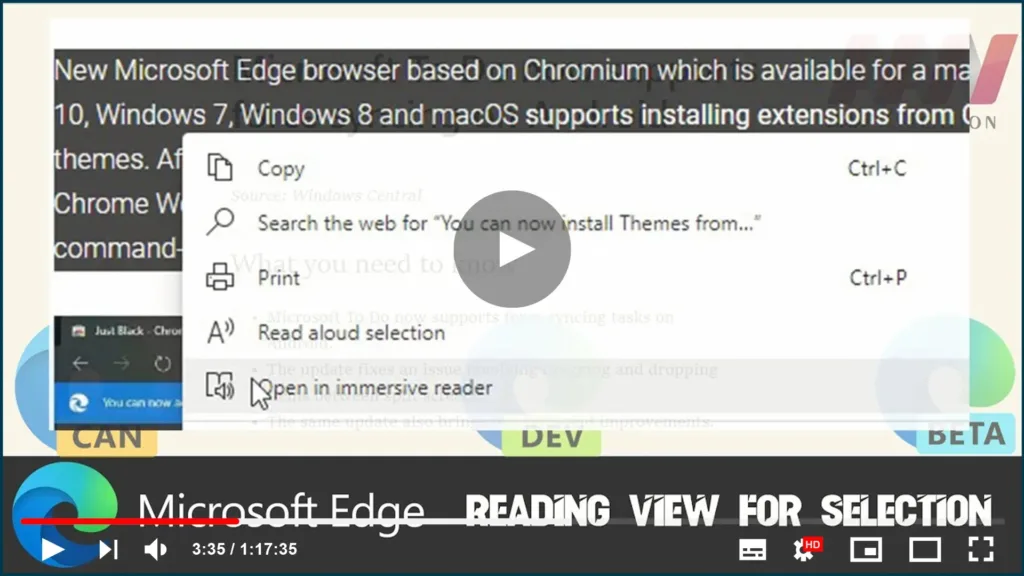

Yet another interesting option made its appearance in the Dev and Canary
version of Microsoft Edge Chromium. With the latest build, you can now
select a text and send it to an ‘immersive reader’.
This feature is quite useful when you are reading a paragraph on a website
with a design that makes it hard to read. Instead of reloading the whole web
page in Reading View, you can select a small piece of the text and quickly
open it for reading from the context menu.
In this guide, you’ll learn the steps to Enable and Use Reading View in
Microsoft Edge
Microsoft Edge
01. Open Microsoft edge Canary or the dev version.
02. Follow the path:
edge://flags#edge-reading-view-for-selection
03. Click the drop-down option and click the enable option.
04. Click the restart. and select and right-click the text on the web
page.
(adsbygoogle = window.adsbygoogle || []).push({});

05. Click the open in Immersive Reader.
Once you complete the steps, you can get the text on a separate page.

