
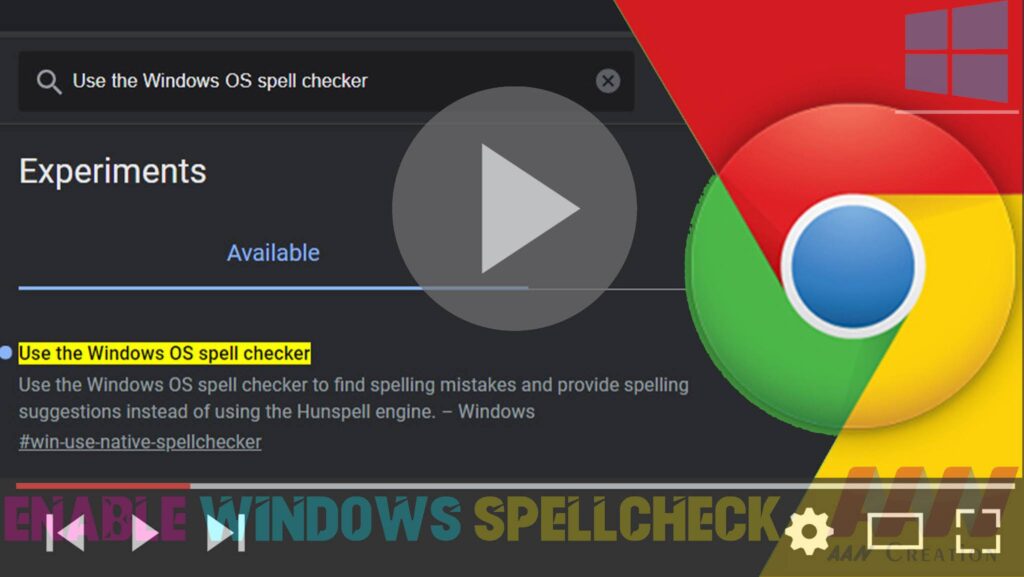

Google Chrome offers its own spellchecking feature, but you can also enable Windows Spellcheck for a more integrated experience with your operating system. This guide will show you how to enable Windows Spellcheck on Google Chrome.
Introduction
Windows Spellcheck, also known as Windows Spellchecker, can provide a consistent spellchecking experience across different applications on your Windows device. Enabling it on Google Chrome can improve spellchecking accuracy and integrate the spellchecking settings you have configured in Windows.
Steps to Enable Windows Spellcheck on Google Chrome
Step 01: Open Google Chrome
Launch Google Chrome on your Windows 10 or Windows 11 device.
Step 02: Access Chrome Settings
Click on the three vertical dots (menu icon) in the top-right corner of the browser.
Select “Settings” from the drop-down menu.
Step 03: Navigate to Language Settings
In the Settings sidebar, click on “Languages.”
Alternatively, you can type chrome://settings/languages in the address bar and press Enter.

Step 04: Enable Windows Spellcheck
chrome://flags/#win-use-native-spellchecker
Scroll down to the “Spell check” section.
Toggle the switch next to “Use the Windows OS spell checker” to the on position.
Step 05: Verify Language Preferences
Ensure that the languages you want to spellcheck are listed under “Languages.”
If your preferred languages are not listed, click “Add languages” and select the languages you want to use.
Additional Information
Benefits of Using Windows Spellcheck
- Consistency: Provides a consistent spellchecking experience across all applications on your Windows device.
- Customization: Leverages the custom dictionaries and spellchecking settings configured in Windows.
- Improved Accuracy: Can offer better accuracy by using Windows’ spellchecking algorithms and dictionaries.
Considerations
- Compatibility: Ensure that your version of Google Chrome supports the Windows Spellcheck feature. This feature is available in recent versions of Chrome.
- Language Settings: Make sure that the languages you want to spellcheck are properly configured in both Chrome and Windows settings.
Conclusion
By following these steps, you can enable Windows Spellcheck on Google Chrome, enhancing your spellchecking experience with improved accuracy and consistency across different applications. This integration can make your browsing and typing experience more efficient and error-free.

