
.webp)
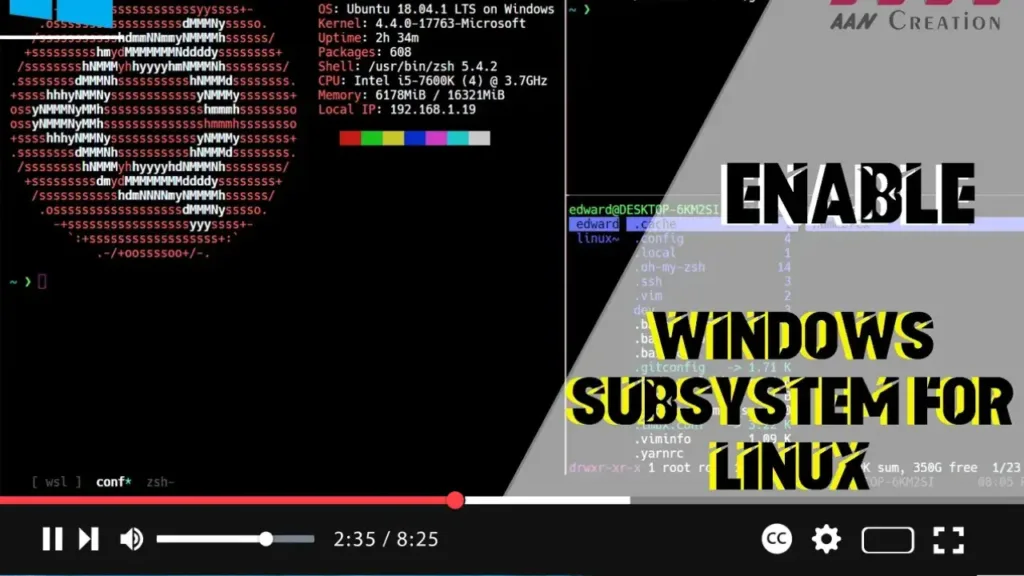
The Windows Subsystem for Linux (WSL) allows developers to run a GNU/Linux environment directly on Windows, unmodified, without the overhead of a virtual machine. Enabling WSL through the Settings app in Windows 10 is a straightforward process. Follow these steps to get WSL up and running on your system.
Introduction
Enabling the Windows Subsystem for Linux (WSL) provides a full Linux environment right on your Windows 10 system, allowing you to run Linux command-line tools and applications. This guide will show you how to enable WSL using the Settings app in Windows 10.
Steps to Enable Windows Subsystem for Linux (WSL) Using Settings
Step 01: Open the Settings App
Click on the Start menu and select the “Settings” gear icon to open the Settings app.
Step 02: Navigate to the Apps Section
In the Settings app, click on “Apps” to access the Apps & features settings.
Step 03: Access Optional Features
Within the Apps & features section, click on “Optional features” located under the “Apps & features” header.
Step 04: Add a Feature
%20Using%20Settings.webp)
Click on the “Add a feature” button to open a list of optional features that you can install.
Step 05: Find and Select Windows Subsystem for Linux
Scroll through the list or use the search bar to find “Windows Subsystem for Linux”. Once you locate it, click on it and then click the “Install” button.
Step 06: Restart Your Computer
After the installation completes, you will need to restart your computer to apply the changes. Click on “Restart now” or restart your computer manually.
Conclusion
Once you complete these steps, the Windows Subsystem for Linux will be enabled on your Windows 10 system. You can now install your preferred Linux distribution from the Microsoft Store and start using Linux command-line tools and applications on your Windows 10 device. This integration allows for a seamless development experience across both Windows and Linux environments.

