

Firewalls are a crucial component of any computer system’s security
measures. They help protect your computer from external threats and
prevent unauthorized access to your network. In this blog post, we’ll walk
you through the steps to export and import firewall rules using Command
Prompt on Windows 10.
measures. They help protect your computer from external threats and
prevent unauthorized access to your network. In this blog post, we’ll walk
you through the steps to export and import firewall rules using Command
Prompt on Windows 10.
Exporting Firewall Rules:
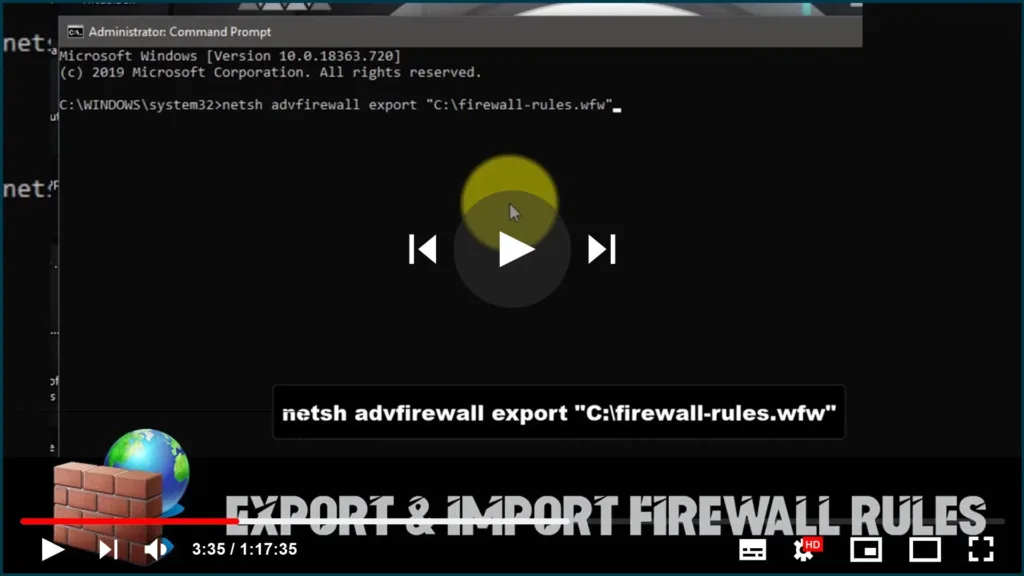
To export your current firewall rules using Command Prompt, follow these
steps:
steps:
01. Open Command Prompt as Administrator.
02. Type the following command and press Enter:
netsh advfirewall export "C:fwrules.wfw"
03. This command will export all of your current firewall rules to a file
called “fwrules.wfw” located in the root of the C: drive.
called “fwrules.wfw” located in the root of the C: drive.

Importing Firewall Rules:
To import your previously exported firewall rules, follow these
steps:
steps:
01. Open Command Prompt as Administrator.
02. Type the following command and press Enter:
(adsbygoogle = window.adsbygoogle || []).push({});
netsh advfirewall import "C:fwrules.wfw"
03. This command will import all of the firewall rules from the
“fwrules.wfw” file located in the root of the C: drive.
“fwrules.wfw” file located in the root of the C: drive.
Note: You can replace “C:fwrules.wfw” with any desired file path and
name for the exported/imported firewall rules.
name for the exported/imported firewall rules.
Exporting and importing firewall rules using Command Prompt on Windows
10 is a quick and easy way to transfer your firewall settings to another
computer or to backup your current settings. By following the simple
steps outlined in this blog post, you can ensure that your firewall
rules are always up-to-date and effective in protecting your computer
from external threats.
10 is a quick and easy way to transfer your firewall settings to another
computer or to backup your current settings. By following the simple
steps outlined in this blog post, you can ensure that your firewall
rules are always up-to-date and effective in protecting your computer
from external threats.

