
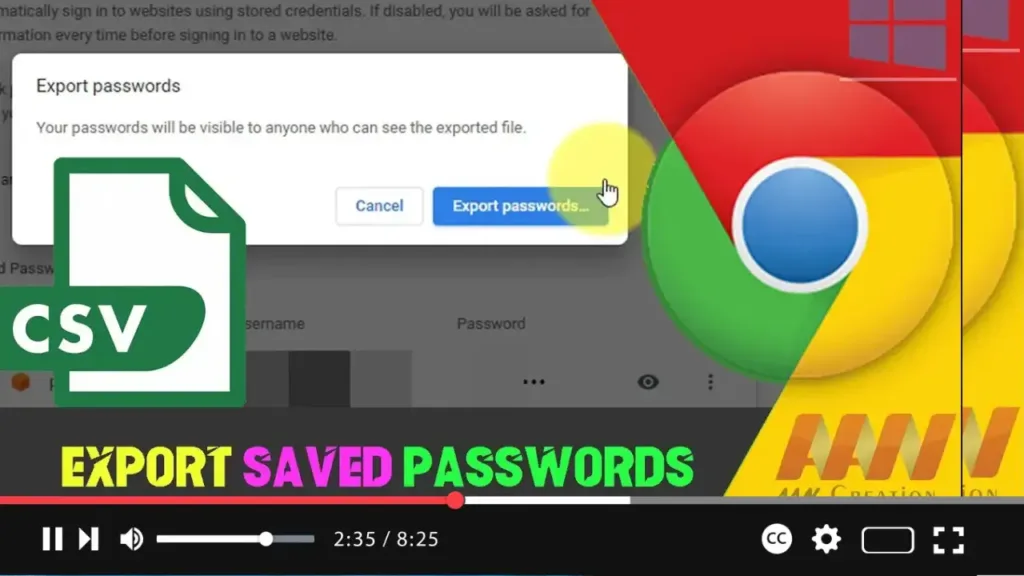

Exporting saved passwords from Google Chrome can be useful for creating backups, transferring to another browser, or importing into a password manager. This guide will walk you through the steps to export saved passwords from Google Chrome on Windows 10.
Introduction
Google Chrome provides a built-in feature that allows you to export your saved passwords into a CSV file. This file can then be used to import your passwords into another browser or password manager.
Steps to Export Saved Passwords on Google Chrome Browser
Step 01: Access Password Settings
Open Google Chrome on your Windows 10 device.
Click on the three vertical dots (menu icon) located at the top-right corner of the browser.
Select “Settings” from the drop-down menu.
Scroll down and click on “Autofill” in the left-hand sidebar.
Click on “Passwords.”
.webp)
Step 02: Export Passwords
In the Passwords section, click on the three vertical dots (more options) next to “Saved Passwords.”
Select “Export passwords” from the dropdown menu.
.webp)
Step 03: Confirm Export
A pop-up window will appear, warning you that passwords will be visible to anyone who has access to the exported file. Click on “Export passwords.”
You may be prompted to enter your computer’s password or authenticate using your chosen method (such as a fingerprint or PIN).
Step 04: Save the CSV File
A file explorer window will open, prompting you to choose a location to save the CSV file.
Select the desired location, name the file, and click “Save.”
Additional Information
Benefits of Exporting Passwords
Creating a backup: Keep a secure backup of your passwords.
Migration: Easily transfer passwords to another browser or password manager.
Review: Review your saved passwords for accuracy and updates.
.webp)
Considerations
Security: The exported CSV file contains sensitive information. Ensure it is stored securely and delete it after use to prevent unauthorized access.
CSV Format: The file will be saved in CSV format, which can be opened with text editors or spreadsheet applications.
Conclusion
Exporting saved passwords from Google Chrome is a simple process that can greatly assist in managing and securing your credentials. By following the steps outlined above, you can easily export your saved passwords to a CSV file on your Windows 10 device. Always handle the exported file with care to ensure your passwords remain secure.

