


If you’re experiencing issues with apps not functioning correctly in Windows 10, especially with the Microsoft Store app, resetting it can often resolve these problems. The Microsoft Store is essential for installing and updating Universal apps, but sometimes it may crash or fail to install new applications. Fortunately, Windows 10 provides a straightforward way to reset the Store app without requiring registry edits or complex command-line tools.
Steps to Reset the Microsoft Store App in Windows 10
Step 01: Open Settings
- Click on the Start menu (Windows icon) located at the bottom left corner of your screen.
- Select the Settings gear icon to open the Settings window.
Step 02: Navigate to Apps
- In the Settings window, click on Apps.
- This will open the Apps & features settings.
Step 03: Locate Microsoft Store
- In the Apps & features section, scroll through the list of installed applications or use the search bar to find Microsoft Store.
- Click on Microsoft Store to select it.
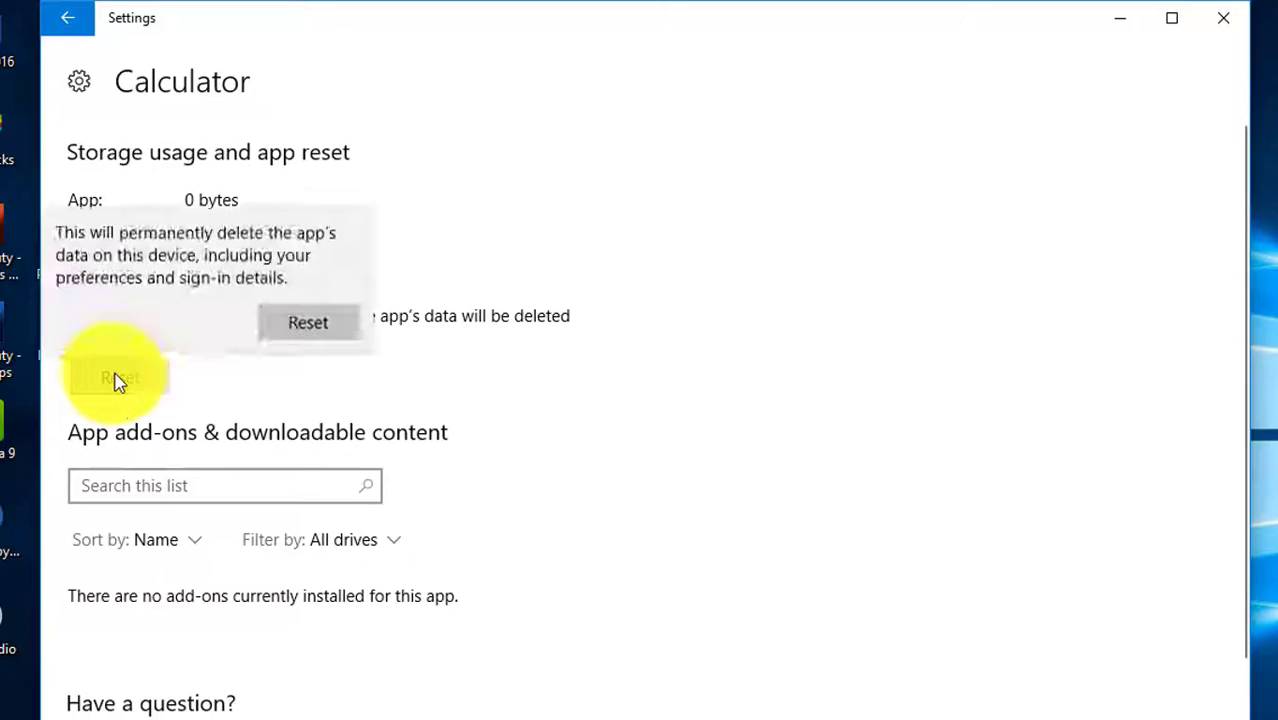
Step 04: Reset the Microsoft Store
- After selecting Microsoft Store, you will see additional options on the right side.
- Click on the Reset button.
- A confirmation dialog may appear, informing you that the app’s data will be reset to default settings. Confirm this action.
Resetting the Microsoft Store app will repair its package and should resolve common issues. Importantly, this process does not remove your account data or preferences, making it a safe troubleshooting step.
Conclusion
If you find that apps installed from the Microsoft Store are not working correctly, resetting the Store app is an effective solution. Following these simple steps can restore the functionality of the Microsoft Store and help you continue using your favorite applications without issues. If problems persist even after the reset, you may want to explore additional troubleshooting methods, such as checking for Windows updates or running the Windows Store Apps troubleshooter.

