
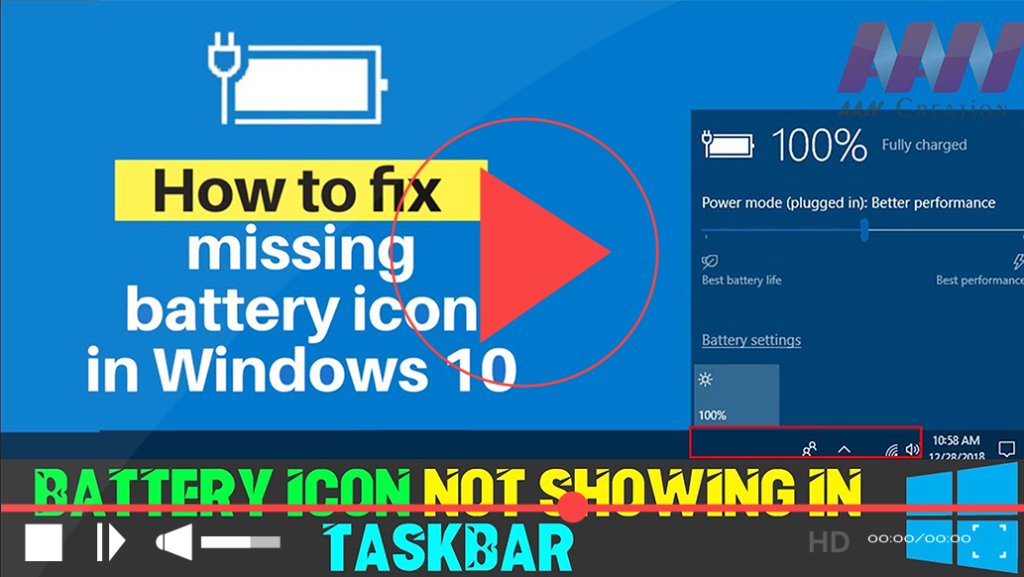

If you find that the battery icon is missing from your Windows 10 taskbar, it can be frustrating, especially if you need to monitor your battery life frequently. This issue may arise due to various reasons, such as disabling the battery icon in the settings or problems with Windows battery drivers. Here’s a straightforward guide to restore the battery icon in your taskbar.
Step-by-Step Guide to Fix Missing Battery Icon
Step 01: Open Device Manager
Search for “Device Manager” in the Windows search bar and select the top result to open it.
Step 02: Manage Battery Drivers
- In Device Manager, locate the Batteries section.
- Right-click on Microsoft AC Adapter and select Disable device.
- After a few moments, right-click on it again and select Enable device.
- Next, do the same for Microsoft Surface ACPI-Compliant Control Method Battery: right-click, disable, and then enable it.
This method resets your battery’s default options, which often resolves the issue of the missing battery icon.

Additional Troubleshooting Steps
If the battery icon still does not appear after following the above steps, consider these additional troubleshooting methods:
-
Check Notification Settings: Go to Settings > System > Notifications & actions. Ensure that the “Always show all icons in the notification area” option is enabled.
-
Restart Windows Explorer: Sometimes, restarting Windows Explorer can refresh the taskbar icons. Right-click the taskbar and select Task Manager, find Windows Explorer, right-click it, and choose Restart.
-
Run Windows Troubleshooter: Navigate to Settings > Update & Security > Troubleshoot > Additional troubleshooters. Run the “Power” troubleshooter to detect and fix any power-related issues.
-
Update Windows: Ensure your Windows operating system is up to date. Go to Settings > Update & Security > Windows Update, and check for updates.
If the battery icon still does not appear after following the above steps, consider these additional troubleshooting methods:
-
Check Notification Settings: Go to Settings > System > Notifications & actions. Ensure that the “Always show all icons in the notification area” option is enabled.
-
Restart Windows Explorer: Sometimes, restarting Windows Explorer can refresh the taskbar icons. Right-click the taskbar and select Task Manager, find Windows Explorer, right-click it, and choose Restart.
-
Run Windows Troubleshooter: Navigate to Settings > Update & Security > Troubleshoot > Additional troubleshooters. Run the “Power” troubleshooter to detect and fix any power-related issues.
-
Update Windows: Ensure your Windows operating system is up to date. Go to Settings > Update & Security > Windows Update, and check for updates.
Conclusion
The missing battery icon in your Windows 10 taskbar can be easily resolved by following these simple steps. By managing your device drivers and checking your notification settings, you can quickly restore the battery icon and maintain better visibility of your battery status. If problems persist, exploring additional troubleshooting methods may help identify the underlying issues. Keep your system running smoothly and efficiently by regularly monitoring your battery life!
The missing battery icon in your Windows 10 taskbar can be easily resolved by following these simple steps. By managing your device drivers and checking your notification settings, you can quickly restore the battery icon and maintain better visibility of your battery status. If problems persist, exploring additional troubleshooting methods may help identify the underlying issues. Keep your system running smoothly and efficiently by regularly monitoring your battery life!


