


The computer is becoming more & more popular & many people like to store their files, such as photos, documents, pictures, etc. on their computer. Therefore, protecting the computer against viruses is of very importance to users.
To safeguard computers, people often utilize the Windows built-in tool – Windows Defender or choose a piece of third-party antivirus software.
Windows Defender is effective since it can keep your computer secured. Although, some people reported that they run into the error that “your Virus and threat protection is managed by your organization” when running or turning on the Windows Defender, as showing in the following picture:
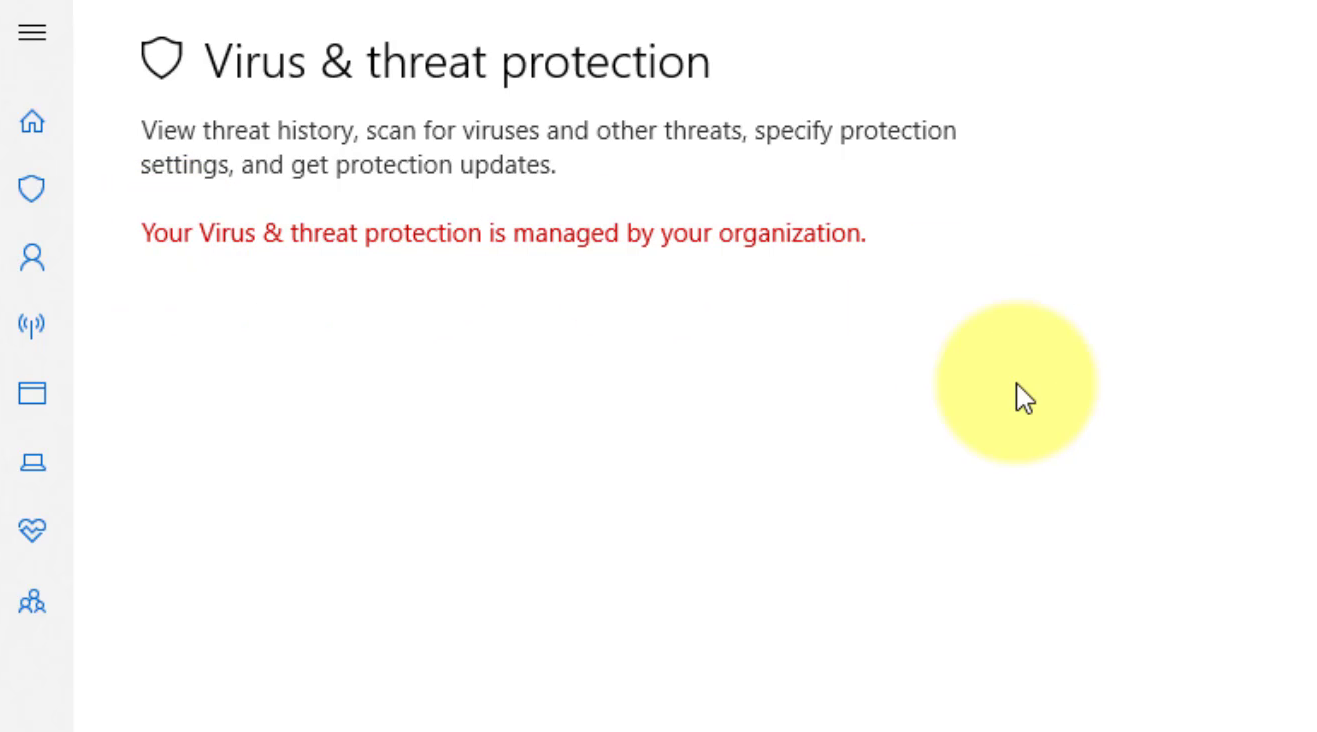
This error that “your Virus & threat protection is managed by your organization” Windows Defender happens especially when you have applied a Windows Update, particularly the April Build 1803 update.
Also, the error that Virus and threat protection is managed by your organization can happen if a virus or malware is interfering with Windows Defender. Or if the Windows Defender is not in its perfect shape, the error message will pop up whenever users start the program.
So, another important thing is to solve the error that “Virus and threat protection is managed by your organization”. However, do you know how to do that? If not, keep your reading & the following part will demonstrate the solutions to fix this Windows Defender error.
Ways to Fix Your Virus and Threat Protection Is Managed by Your Organization?
01. Remove malware.
02. Remove DisableAntiSpyware via CMD.
03. Remove DisableAntiSpyware via Registry.
04. Perform a clean boot.
05. Check the service status of Windows Defender.
Fixed – Your Virus and Threat Protection Is Managed by Your Organization
In this case, we will show you how to find the issue that your “Virus & threat protection is managed by your organization” Windows Defender. If you come across the same issue, try these methods.
Solution 01. Remove Malware

As we have mentioned in the above part, the error that “your Virus and threat protection is managed by your organization” may happen because the malware threads block or interferes with the Windows Defender.
So, to fix your virus and threat protection is managed by your organization problem, you can choose to remove malware firstly.
To remove malware, you can scan your computer with a third-party malware-removal tool Ex. Malwarebytes Free.
After that, run Windows Defender again & check whether the error that “your Virus & threat protection is managed by your organization” Windows Defender is solved.
If this solution can’t fix this Virus and threat protection error, try other solutions.
Solution 02. Remove DisableAntiSpyware via CMD
If this error that Virus and threat protection is managed by your administrator is not caused by the malware threads, you can try this way.
A recent update has caused Windows 10 to strangely disable Windows Defender anti-spyware capability. So, to resolve this error, you can choose to delete this registry.
Now, you’ll learn the steps to remove DisableAntiSpyware via CMD.
01. Type cmd in the search box and choose the best-matched one.
02. Then right-click it to choose Run as administrator.
03. In the command line window, type: REG DELETE “HKLMSOFTWAREPoliciesMicrosoftWindows Defender” /v
DisableAntiSpyware and hit Enter to continue.
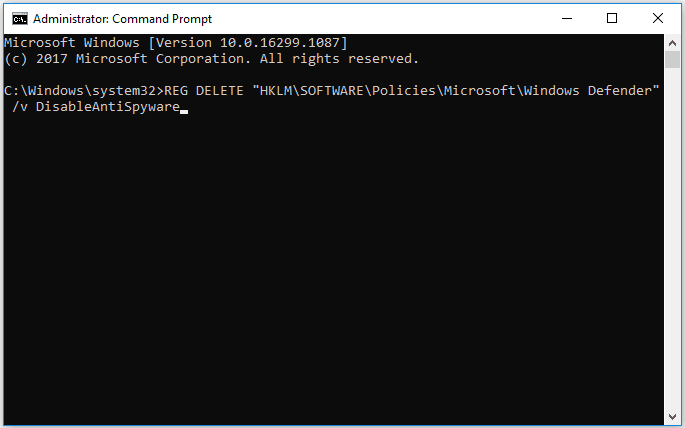
04. When the process is finished, reboot your computer and run Windows Defender again to check whether the error that your virus and threat protection is managed by your organization is solved.
Solution 3. Remove DisableAntiSpyware via Registry Editor.
Besides removing DisableAntiSpyware via Cmd, you can also choose to delete it via Registry Editor to resolve the error that your “virus and threat protection is managed by your organization”.
Now, here is the tutorial.
Note: Making changes/Delete in Registry is a risky thing. If done incorrectly, your windows os may fail to boot. So, back up the registry before proceeding.
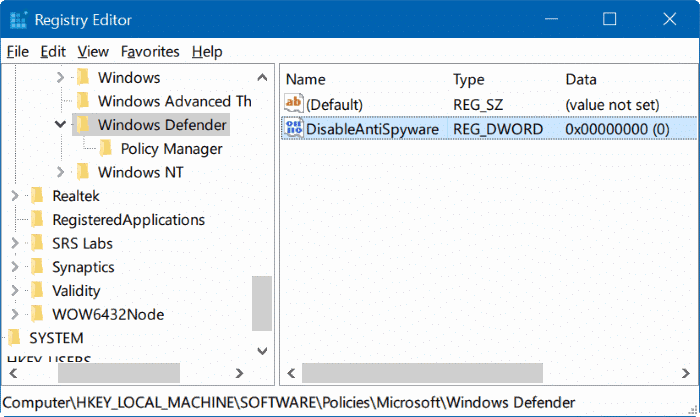
1. Press the Windows key + R key together to open the Run dialog.
2. Type Regedit in the box and click OK to continue.
3. Then navigate to the following folder.
Computer > HKEY_LOCAL_MACHINE > SOFTWARE > Policies > Microsoft > Windows Defender
navigate to the specific folder
4. On the right panel, select the DisableAntiSpyware key & right-click it. Then select Delete to continue.
5. Then conform the change to permanently delete the registry key.
When the whole process is finished, Restart your computer & run Windows Defender again to check whether the error that “Virus and threat protection is managed by your administrator” is fixed.
If this method doesn’t work, try other solutions to fix this Windows Defender error.
Solution 4. Perform a Clean Boot
To solve the error that “your Virus and threat protection is managed by your organization”, you can also try performing a clean boot and then check which program causes this Virus and threat protection error.
Now, here is the tutorial.
1. Press the Windows key + R key together to open the Run.
2. Then type MSConfig in the box & click OK to continue.
3. In the System Configuration window, switch to the Services tab.
4. Check the option Hide all Microsoft services & click Disable all.
5. Then navigate to the Startup tab & click Open Task Manager.
6. Now, you will enter the Task Manager window. Select the suspicious third-party program & click Disable to continue.
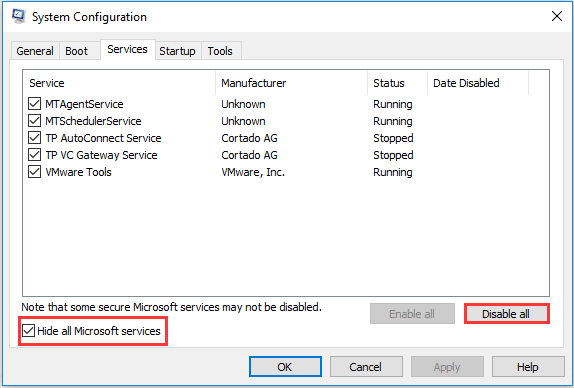
After that, you can exit the Task Manager window & restart your computer & check if the problem that “your Virus and threat protection is managed by your organization” is Fixed. If this Windows Defender error has been resolved, the disabled application is the cause of the error. You must uninstall it.
If the problem still exists, repeat the process & try to find which program is causing the error that Virus and threat protection is managed by your organization’. & please enable back the disabled apps if these are not the cause.
Solution 5. Check the Service Status of Windows Defender
If the service status of Windows Defender is not running, you may also come across the error that your Virus and threat protection is managed by your organization. So, to fix this error, you can choose to check the service status of Windows Defender.
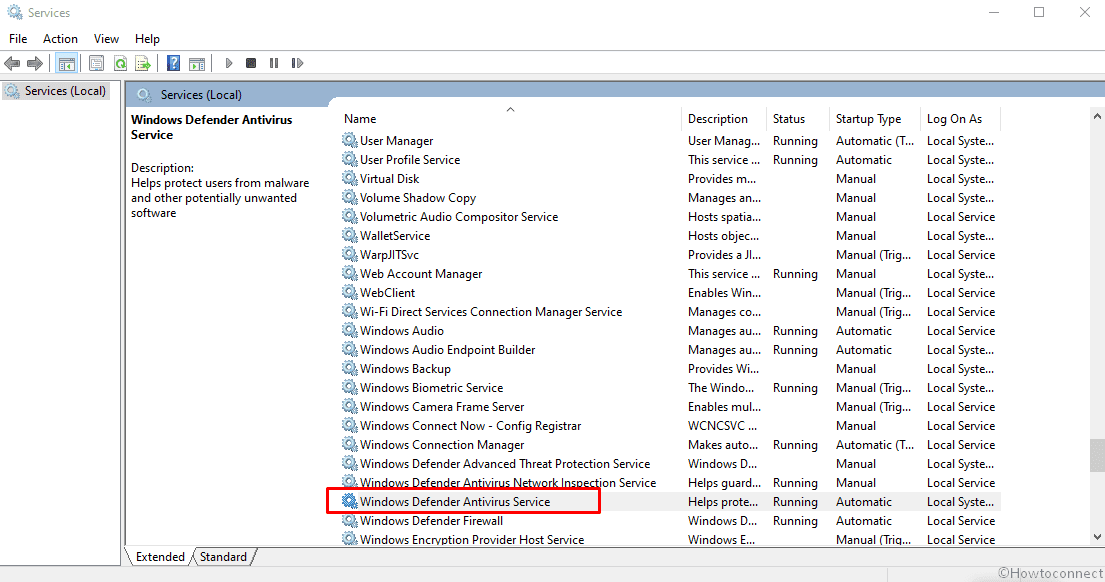
Now, here is the tutorial.
01. Press the Windows key and R key together to open the Run dialog.
02. In the pop-up window, type services.msc in the box and click OK to continue.
03. In the Services window, scroll down to find the Windows Defender Antivirus service.
04. Double-click it, then change its Startup type to Automatic, and change the Services status to Running.
05. Then click Apply and OK to confirm the changes.
When all processes are completed, restart your computer and run Windows Defender again to check whether the error that “your Virus and threat protection is managed by your organization” is solved.
Note: Besides the above “Virus and threat protection is managed by your organization” fixes, to resolve this Windows Defender error, you can utilize another antivirus program to scan virus & identify the threat on your computer. There are many reliable antiviruses or antimalware programs that you can use.

(adsbygoogle = window.adsbygoogle || []).push({});

