
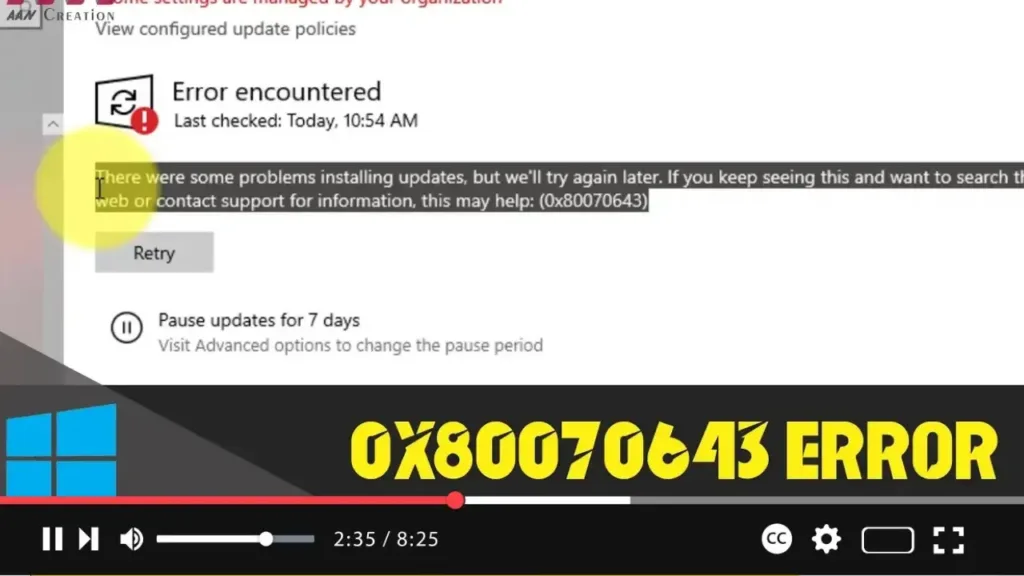

The Windows 0x80070643 error code is a common issue that can occur during Windows Updates or software installations on Windows 10. This error can be caused by corrupted system files, outdated drivers, or conflicts with other software. Here is a comprehensive guide to fixing the 0x80070643 error.
Introduction:
Windows 0x80070643 is an error code that often appears during Windows Updates or while installing software on Windows 10. It can be frustrating, but there are several steps you can take to resolve it. This guide provides detailed instructions to troubleshoot and fix the error.
Steps to Fix Windows 0x80070643 Error:
Step 01: Restart Your Computer
Restarting your computer can resolve temporary issues and apply necessary updates. Sometimes, a simple reboot can fix the problem.
.webp)
Step 02: Run Windows Update Troubleshooter
- Open Settings by pressing
Windows key + I. - Go to “Update & Security” and click on “Troubleshoot”.
- Select “Additional troubleshooters”.
- Under “Get up and running”, click on “Windows Update” and then “Run the troubleshooter”.
- Follow the on-screen instructions to complete the process.
.webp)
Step 03: Install the Latest .NET Framework
- Open a web browser and go to the Microsoft .NET Framework download page.
- Download the latest version of the .NET Framework.
- Run the installer and follow the on-screen instructions to install it.
- Restart your computer after installation.
Step 04: Reset Windows Update Components
- Open Command Prompt as an administrator by typing
cmdin the search bar, right-clicking on “Command Prompt”, and selecting “Run as administrator”. - Stop the Windows Update services by typing the following commands and pressing Enter after each:
arduino
net stop wuauserv net stop cryptSvc net stop bits net stop msiserver - Rename the SoftwareDistribution and Catroot2 folders by typing the following commands:
mathematica
ren C:WindowsSoftwareDistribution SoftwareDistribution.old ren C:WindowsSystem32catroot2 Catroot2.old - Restart the Windows Update services by typing the following commands:
sql
net start wuauserv net start cryptSvc net start bits net start msiserver - Close the Command Prompt and restart your computer.
.webp)
Step 05: Update Drivers
- Open Device Manager by pressing
Windows key + Xand selecting “Device Manager”. - Expand the categories and locate any device with a yellow exclamation mark.
- Right-click on the device and select “Update driver”.
- Follow the on-screen instructions to update the drivers.
Step 06: Run System File Checker and DISM Tool
- Open Command Prompt as an administrator.
- Run the System File Checker by typing
sfc /scannowand pressing Enter. Wait for the process to complete. - Run the DISM tool by typing the following commands and pressing Enter after each:
mathematica
DISM /Online /Cleanup-Image /CheckHealth DISM /Online /Cleanup-Image /ScanHealth DISM /Online /Cleanup-Image /RestoreHealth - Restart your computer after the DISM tool completes.
Step 07: Manually Install the Update
- Go to the Microsoft Update Catalog website.
- Search for the update that is causing the error by entering its KB number.
- Download the update file that matches your system architecture (x86, x64).
- Run the downloaded file to install the update manually.
.webp)
Additional Information:
- Antivirus Software: Temporarily disable your antivirus software as it can sometimes interfere with Windows Updates.
- Clean Boot: Perform a clean boot to ensure no background services are causing conflicts. You can do this by typing
msconfigin the search bar, going to the “Services” tab, checking “Hide all Microsoft services”, and clicking “Disable all”. Then, go to the “Startup” tab and click “Open Task Manager”. Disable all startup items, close Task Manager, and click “OK” in the System Configuration window. Restart your computer.
.webp)
By following these steps, you should be able to resolve the 0x80070643 error and successfully install Windows updates or other software.

