
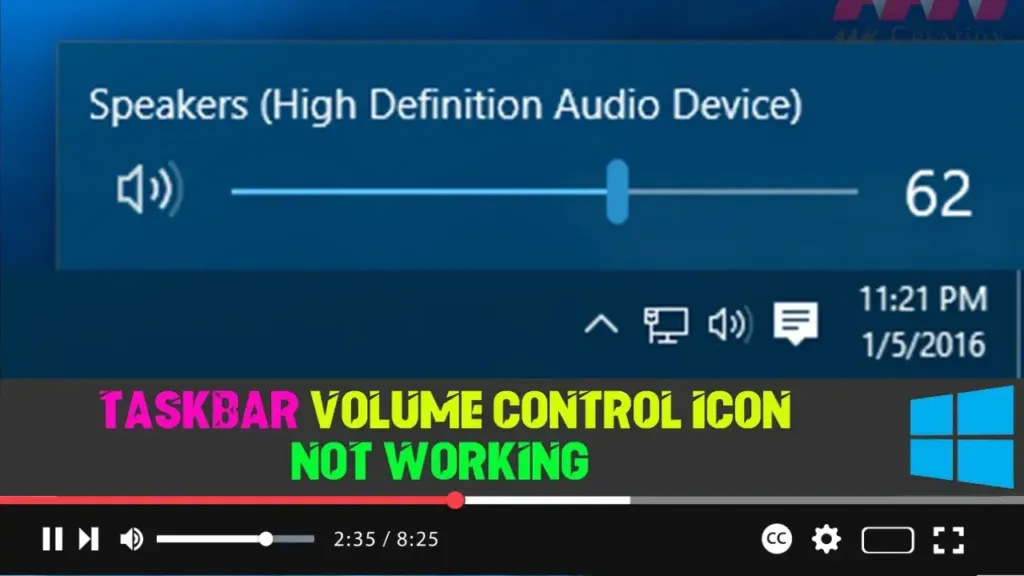

The Volume Control icon in the system tray is the quickest way to control the volume on Windows 10. However, after a recent update or software installation, it might stop responding to mouse clicks. If the icon highlights and shows the volume level when you hover over it but doesn’t respond to clicks, here’s how you can fix it.
In this video, you’ll learn the steps to fix the Windows 10 Taskbar Volume Control icon not working.
Steps to Fix Volume Control Icon
Step 01: Right-click on the Taskbar
- Move your mouse to the Taskbar and right-click anywhere on the empty space.
Step 02: Select Task Manager
- From the context menu that appears, select “Task Manager.”
.webp)
Step 03: Look for Windows Explorer under Processes
- In the Task Manager window, go to the “Processes” tab.
- Scroll down and look for “Windows Explorer” in the list of running processes.
Step 04: Restart Windows Explorer
- Right-click on “Windows Explorer” and choose “Restart.”
.webp)
Conclusion
Wait for everything to complete and the user interface to refresh. You should see the Taskbar disappearing and then reappearing. This will reload the whole UI and give you access to the Volume icon again. By restarting Windows Explorer, you can resolve issues with unresponsive icons on the Taskbar, including the Volume Control icon.

