
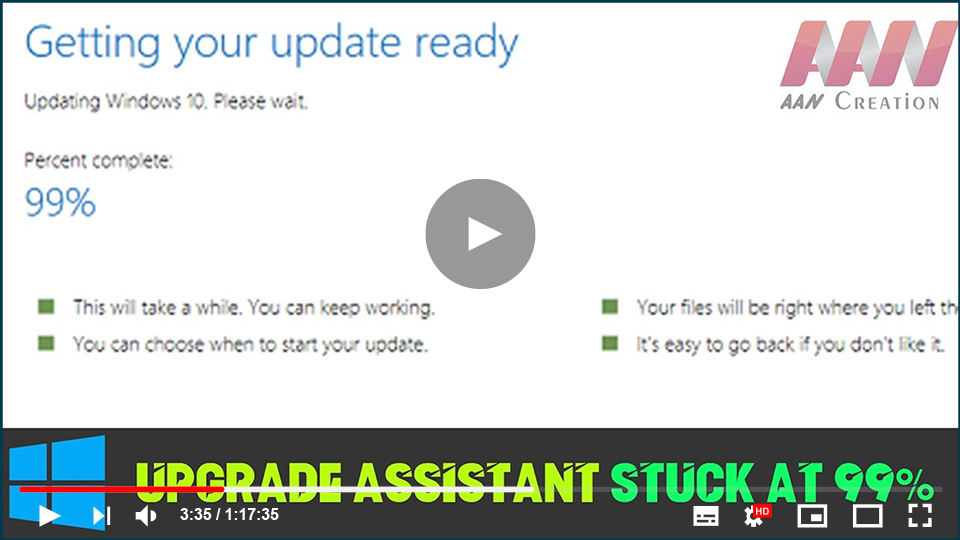

Windows Updates are critical for pushing changes and security updates to
your computer. Although Some users receive the error Windows Update
Assistant may become stuck at 99 percent while attempting to upgrade the OS
via the Windows Update Assistant. If you encounter the same issue, Please
read this article to find a solution to your problem.


your computer. Although Some users receive the error Windows Update
Assistant may become stuck at 99 percent while attempting to upgrade the OS
via the Windows Update Assistant. If you encounter the same issue, Please
read this article to find a solution to your problem.
Try the following solutions to resolve the Windows Update Assistant is
stuck at 99% error:
- Wait
Run Setup from the Media folder
Run the Windows Updates troubleshooter
Restart Windows Update Services
(adsbygoogle = window.adsbygoogle || []).push({});
1] Wait
Wait! If necessary, even for a couple of hours. A stuck process can
sometimes unstick itself, and that would be the best way to proceed if
that happened.
sometimes unstick itself, and that would be the best way to proceed if
that happened.
2] Run Setup from the Media folder
If Windows 10 Update Assistant is stuck at 99% then use this trick to
reset the process. Before you restart your computer, make sure you
follow these steps:
reset the process. Before you restart your computer, make sure you
follow these steps:
01. Open the File Explorer
02. Go to the path C:$GetCurrent.
03. If you are unable to see the $GetCurrent folder, it might be
hidden.
hidden.
04. In that case, go to the View tab and check the box associated with
Hidden items.
Hidden items.
05. In this folder, you will find the Media folder.
06. Copy and paste it to the Desktop.
07. Restart your computer.
08. Now, copy the Media folder back from the Desktop to the
C:$GetCurrent folder
C:$GetCurrent folder
09. Open the Media folder and double-click Setup.
Follow the on-screen instructions to finish upgrading
You’ll be able to restart the process without deleting the Media folder
this way. So, go ahead and run the Windows Update Assistant once
more.
this way. So, go ahead and run the Windows Update Assistant once
more.
3] Run the Windows Updates Troubleshooter
Exit the upgrade process and then use the Windows Update
Troubleshooter, which is a great built-in feature in Windows 10 to
check for issues related to Windows updates and resolve them if
possible. To run the Windows Updates troubleshooter, follow these
steps.
Troubleshooter, which is a great built-in feature in Windows 10 to
check for issues related to Windows updates and resolve them if
possible. To run the Windows Updates troubleshooter, follow these
steps.
01. Go to Start.
02. Select Settings.
03. Updates & Security.
04. Click the Troubleshoot.
05. Click the Additional troubleshooters.
From the list, choose the Windows Update troubleshooter and click Run
the troubleshooter.
the troubleshooter.
4] Restart the Windows Update Service
(adsbygoogle = window.adsbygoogle || []).push({});
01. Press Win + R to open the Run window.
02. Type the command services.msc & Click Enter to open the
Service Manager.
Service Manager.
03. Locate the Windows update service in the list, which is organized
alphabetically. Right-click on it and then click on Restart.
alphabetically. Right-click on it and then click on Restart.
04. Reboot the system and check if it helps.

