
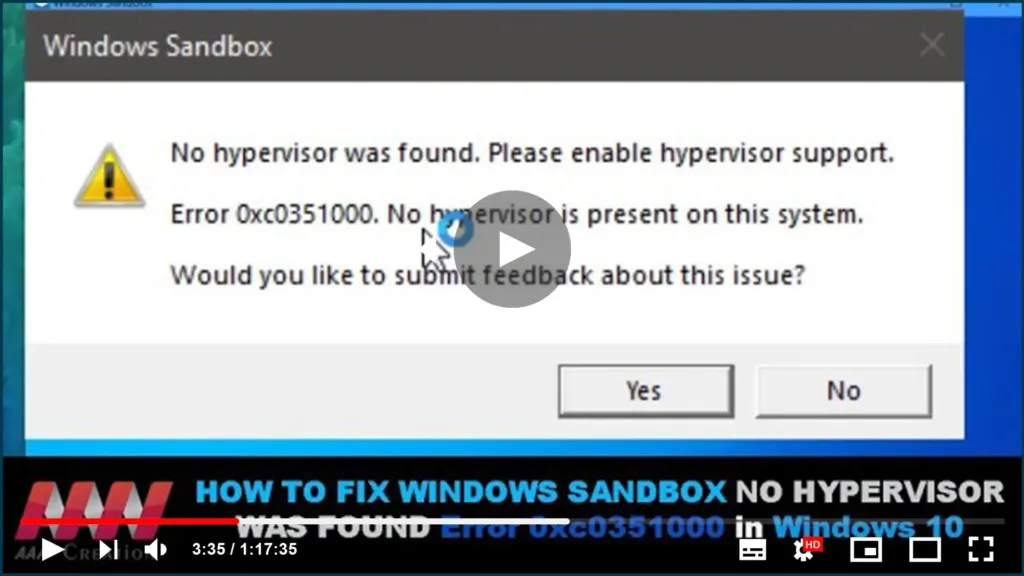

Sometimes, Windows users get an error prompting that “No hypervisor was found. When you open Windows Sandbox, please enable hypervisor support.”
In this guide, you’ll learn the steps to Fix Windows Sandbox No Hypervisor Was Found, Please enable hypervisor support Error in Windows 10.
There some futures we need to check.
no hypervisor was founded
01) If the error “no hypervisor was founded” appears, check to see if CPU Virtualization is enabled.

To test CPU Virtualization, first launch the Task Manager by right-clicking the Start button and selecting Task Manager from the menu. Click the Performance tab in the pop-up window to see the status of Virtualization.
If Virtualization is disabled here, enable it in the BIOS or UEFI settings.
If “No hypervisor was found” error still shows up after enabling CPU Virtualization
If “No hypervisor was found” error still shows up after enabling CPU Virtualization, it is wise for you to enable some Windows features. Windows Sandbox can run successfully with the help of some operating system-based features. Let’s see how to turn on these features.
01. Type Windows Feature in the search box.
02. Choose to Turn Windows features on or off among the listed apps to open it.
03. Locate the features labeled Virtual Machine Platform and Windows Hypervisor Platform,

04. Select the checkboxes beside them.
05. Click OK button to turn them on, then reboot your computer to see if the error has been resolved
Boot Configuration Data (BCD) in Command Prompt
The final operation you can do to remove the error is to ensure the hypervisor is configured to run automatically at computer startup. In order to make this configuration, you need to add an entry to the Boot Configuration Data (BCD) in Command Prompt.
Just do as the following steps to change.
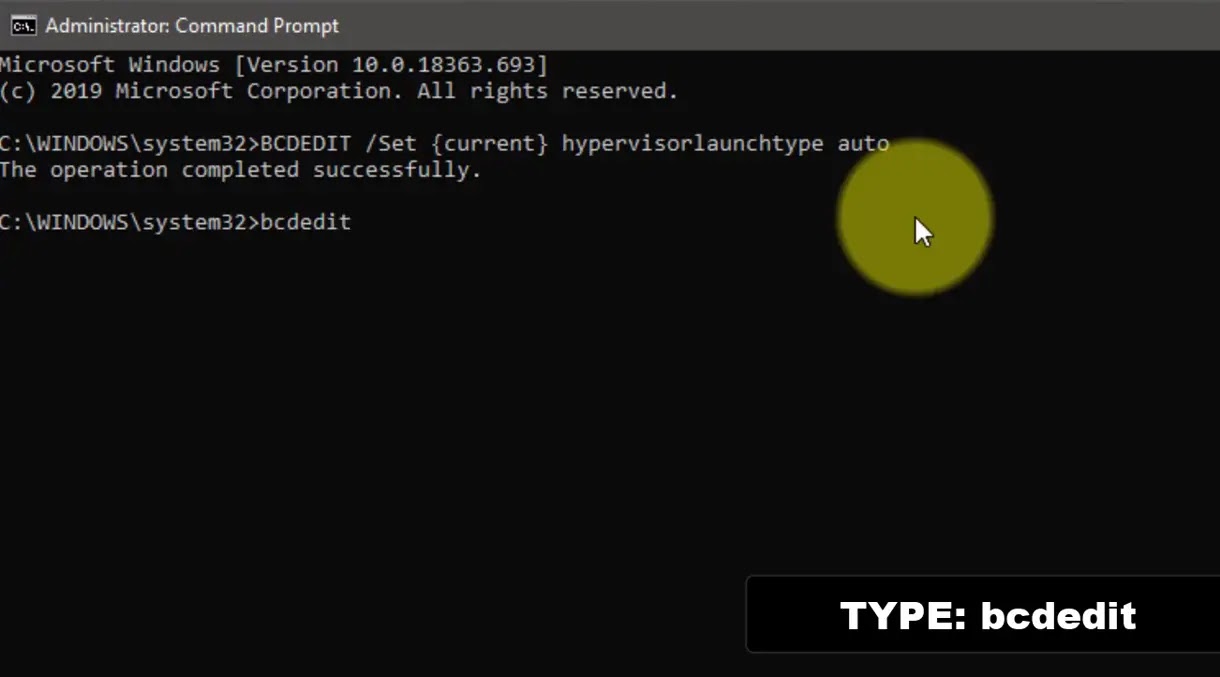
01. Run Command Prompt as Administrator.
02. Type BCDEDIT /Set {current} hypervisorlaunchtype auto

03. Press Enter key.
04., Type bcdedit and press Enter.
05. Reboot your computer.
06. Run the sandbox.
Please pay attention to the item hypervisorlaunchtype. The status showing beside this item should be Auto, which means that hypervisor has been set to run at computer startup.
Just do according to the instruction above to fix Windows Sandbox no hypervisor was found error by yourself.

