
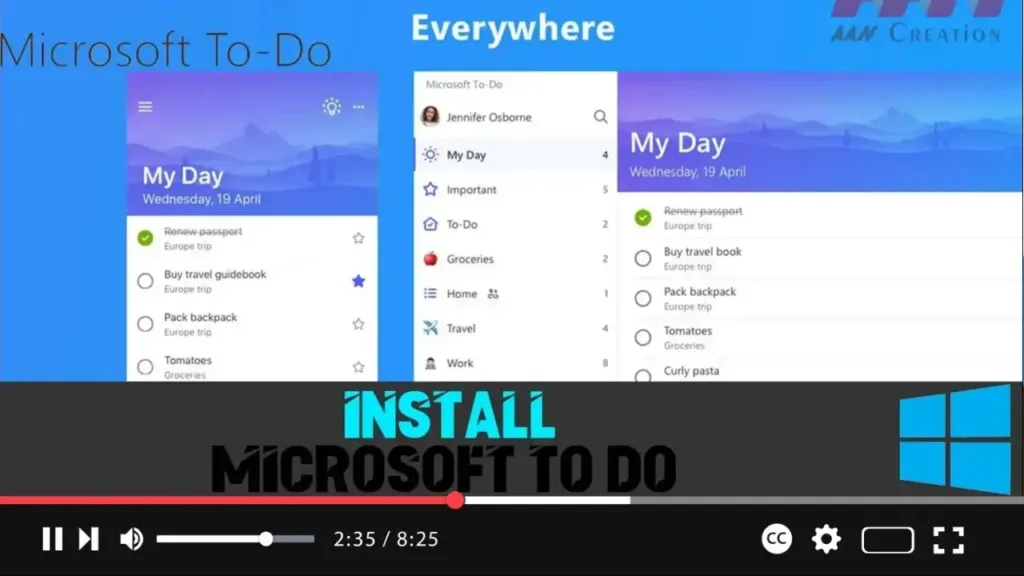

Microsoft To-Do is a versatile task management tool designed to help you organize and prioritize your tasks efficiently. Available across multiple platforms, including Windows 10, Android, iOS, and as a web application, Microsoft To-Do integrates seamlessly with your devices, allowing you to keep track of your tasks from anywhere.
Benefits of Using Microsoft To-Do
Before diving into the installation steps, it’s worth highlighting some of the key features of Microsoft To-Do:
- Task Management: Create, edit, and manage tasks with due dates, reminders, and notes.
- Seamless Integration: Syncs across all devices, ensuring you have access to your tasks whether you’re on your PC, smartphone, or tablet.
- Personalization: Customize your lists with different themes, colors, and emojis.
- Productivity Tools: Integrates with other Microsoft services like Outlook and Microsoft 365, allowing for a unified productivity experience.
Steps to Install Microsoft To-Do on Windows 10
Follow these simple steps to install Microsoft To-Do on your Windows 10 device:
Step 1: Open the Microsoft Store
- Click on the Start Menu at the bottom-left corner of your screen.
- Type Microsoft Store into the search bar and press Enter.
- Alternatively, you can locate the Microsoft Store icon in the taskbar or the Start Menu and click on it to open.
.webp)
Step 2: Search for Microsoft To-Do
- Once the Microsoft Store is open, click on the Search bar at the top-right corner.
- Type Microsoft To-Do and press Enter.
- The search results will display various apps. Look for Microsoft To-Do: Lists, Tasks & Reminders and click on it.
Step 3: Install Microsoft To-Do
- On the Microsoft To-Do app page, click the Get button to start the installation process.
- If you are not signed in, you may be prompted to sign in with your Microsoft account.
- Once signed in, the download and installation process will begin automatically.
Step 4: Launch Microsoft To-Do
- After installation, click the Launch button to open Microsoft To-Do directly from the Microsoft Store.
- You can also access it later by searching for Microsoft To-Do in the Start Menu.
.webp)
Additional Tips for Using Microsoft To-Do
- Sync Across Devices: Ensure that your tasks are always up to date by signing in with the same Microsoft account on all your devices.
- Integrate with Outlook: If you use Outlook for email, you can sync tasks between Microsoft To-Do and Outlook, making it easier to manage your schedule.
- Set Up Notifications: Customize notifications for task reminders so you never miss a deadline.
By following these steps, you can easily install Microsoft To-Do on your Windows 10 device and begin organizing your tasks more effectively. With its user-friendly interface and robust feature set, Microsoft To-Do is an essential tool for anyone looking to enhance their productivity.

