
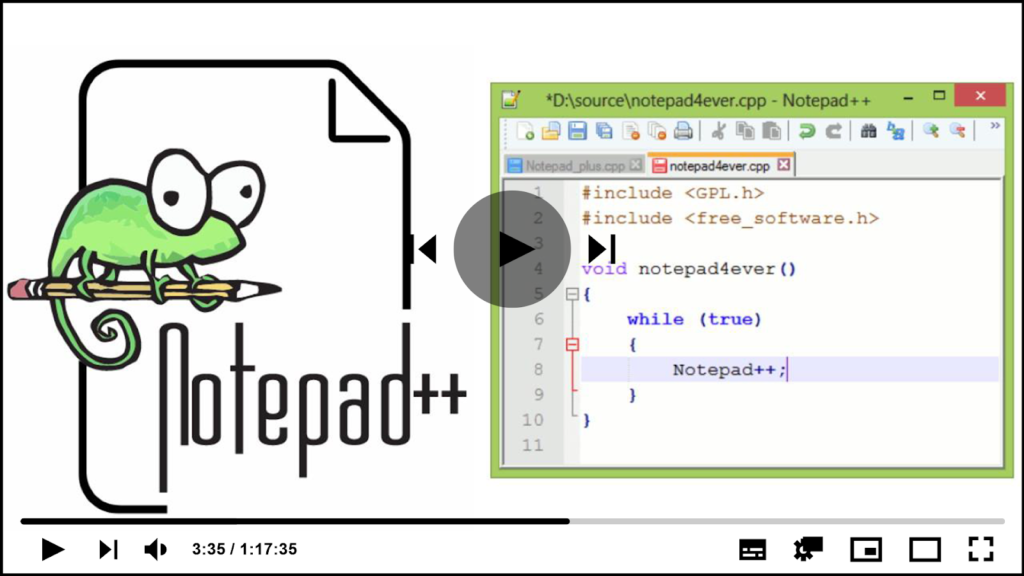

Notepad++ is free and open-source computer software that is mostly used
as a code editor or text editor. It was developed by Don Ho. It is
available in nearly 90 languages. It allows you to work with multiple
files in the same window. It is available for Windows OS only. Its first
version was released on November 24, 2003, and the most recent version is
8.1.9.3. C++ is the programming language used to create it. It has an easy
interface.
as a code editor or text editor. It was developed by Don Ho. It is
available in nearly 90 languages. It allows you to work with multiple
files in the same window. It is available for Windows OS only. Its first
version was released on November 24, 2003, and the most recent version is
8.1.9.3. C++ is the programming language used to create it. It has an easy
interface.
Installing Notepad++ on Windows:
To install Notepad++ on Windows, follow the steps:
01. Visit the official Notepad++ website on any web browser. Click
on Download Notepad++ v8.1.9.3.
on Download Notepad++ v8.1.9.3.

02. On the next webpage, different installer files are listed, click on
the Download button. The executable file will be downloaded shortly. It’s
a small 4.19 MB file that won’t take more than a minute to download.
the Download button. The executable file will be downloaded shortly. It’s
a small 4.19 MB file that won’t take more than a minute to download.

03. Now check for the executable file in downloads in your system and run
it.
it.

(adsbygoogle = window.adsbygoogle || []).push({});
04. It will prompt confirmation to make changes to your system. Click on
Yes.
Yes.
05. Next screen is of selecting language, click OK.

06. Setup screen will appear, click on Next.

07. The next screen will be of License Agreement, click on I Agree.
08. The next screen will be of installing location so choose the drive
which will have sufficient memory space for installation. A total of 11.3
MB of memory was required.
which will have sufficient memory space for installation. A total of 11.3
MB of memory was required.
09. Next screen is of choosing components, all components are already
marked so don’t change anything just click on the Next button.
marked so don’t change anything just click on the Next button.

10. On the next screen, check the box to create a desktop icon and then
click install. In a matter of seconds, the installation will be
completed.
click install. In a matter of seconds, the installation will be
completed.
11. To complete the installation process, click Finish.
Notepad++ has been installed successfully and a desktop icon has been
created.
created.

(adsbygoogle = window.adsbygoogle || []).push({});
Congratulations!! Notepad++ has been installed successfully and a desktop
icon has been created.
icon has been created.

