
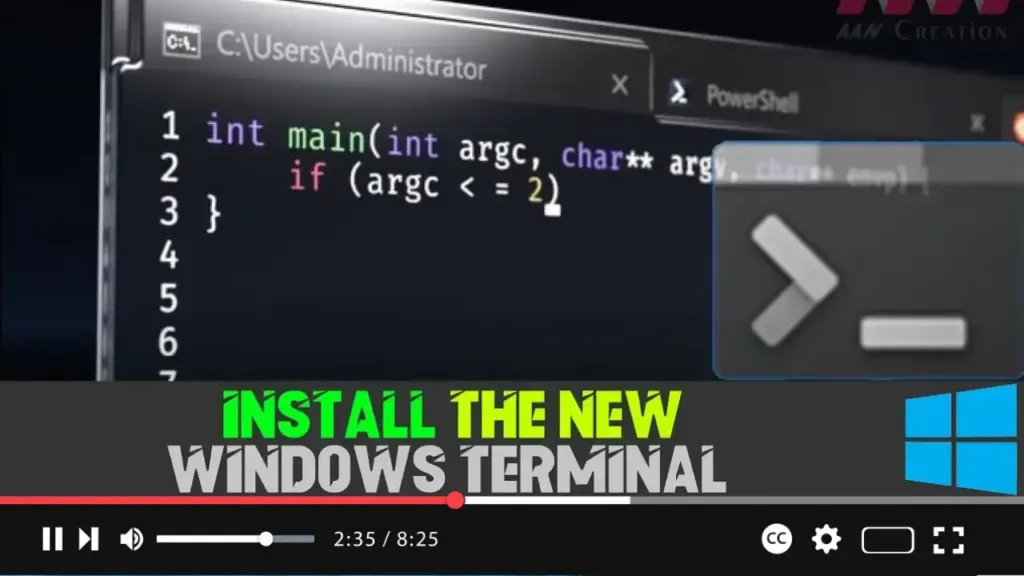

The Windows Terminal is a modern, fast, and powerful terminal application developed by Microsoft. It serves as a unified interface for the command line, Windows PowerShell, and other command-line tools, offering advanced features like multiple tabs, panes, custom themes, and a GPU-accelerated text rendering engine. This tool is essential for users who need a robust terminal environment to execute administrative commands and scripts on Windows 10.
Features of Windows Terminal
- Multiple Tabs and Panes: Organize your sessions efficiently with support for multiple tabs and split panes.
- Custom Themes and Styles: Personalize the terminal’s appearance with custom colors, fonts, and background images.
- GPU-Accelerated Text Rendering: Enjoy a smooth and responsive experience with fast text rendering powered by your GPU.
- Unicode and UTF-8 Support: Work with a wide range of character sets and languages.
Steps to Install the New Windows Terminal on Windows 10
Step 01: Open the Windows Store
- Launch the Microsoft Store on your Windows 10 device by searching for it in the Start menu or by clicking the Store icon from the taskbar.
Step 02: Search for Windows Terminal
- In the Microsoft Store, use the search bar at the top-right corner to type “Windows Terminal”.
- Press Enter to initiate the search.
.webp)
Step 03: Select the First Result
- From the search results, click on the Windows Terminal application. This is usually the first result and is marked as a product by Microsoft Corporation.
Step 04: Install Windows Terminal
- Click the Get button to start the download and installation process.
- Wait for the installation to complete. This may take a few minutes depending on your internet connection.
Step 05: Launch Windows Terminal
- Once the installation is complete, click the Launch button directly from the Microsoft Store.
- Alternatively, you can access Windows Terminal anytime by searching for it in the Start menu.
.webp)
Conclusion
With Windows Terminal now installed on your Windows 10 device, you have a powerful tool at your disposal for all your command-line needs. Whether you’re managing system processes, automating tasks, or developing software, Windows Terminal offers a feature-rich and customizable environment that enhances productivity and efficiency.

