Windows 11 will officially launch on June 24 however, ahead of the
official release, the ISO file of the beta and Dev version has been leaked
on the internet. Windows 11 comes packed with several new UI and features
which are more than enough to make people curious about the latest
release.
In this video, you will learn the steps to install this version of
Windows 11 on Virtualbox, Use these steps.
Virtualbox Settings For Windows 11 OS.
01. Open Virtual Box on your computer & click on the New button visible
at the top.
02. Enter a name and choose the OS name. As of now, Windows 11 option
(Version, Type) is not available in Virtual Box. Therefore, you can select
Windows 10 (64 bit) and click the Next button.

(adsbygoogle = window.adsbygoogle || []).push({});
03. Choose how much RAM you want to allocate to this virtual machine. and
Click the Next button.
04. On the next screen, select Create Virtual Hard Disk option and click
the Create button.
05. choose the VDI (Virtual Disk Image) option and click the Next
button.

06. select the Dynamically allocated option and again click the Next
button.
07. Now you must choose how much virtual storage you want to allocate to your virtual disk. It is suggested to select at least 25GB of storage and
Click the Create button.
08. Once the virtual machine is created and visible on the left side, click
on the Start button.
09. Then it will ask you to choose the start-up disk. Expand the drop-down
list & select the Windows 11 ISO file. However, if it isn’t visible
there, click on the file icon,

10. Add and choose the ISO file and finally click on the Choose button.
11. Click the Start button once done.
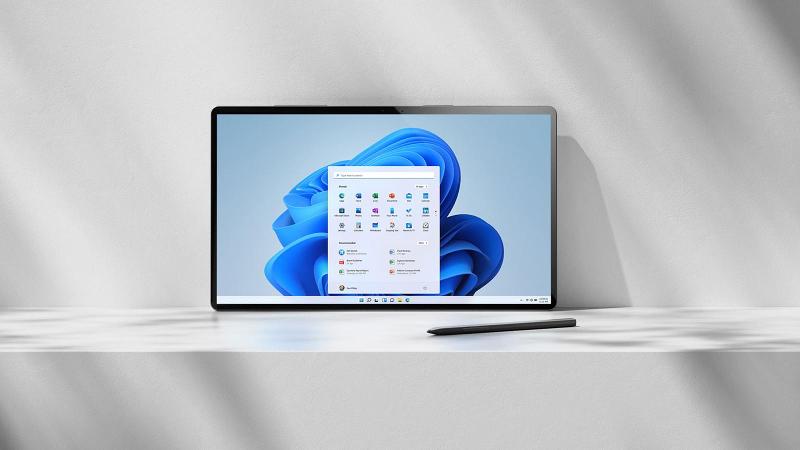
Windows 11 OS Installtion.
(adsbygoogle = window.adsbygoogle || []).push({});
01. The installation process starts immediately after choosing the
language, time, and keyboard method.

02. Click the Install now button and click I don’t have a product key
option and choose the OS edition you wish to install.
03. choose the Custom: Install Windows only (advanced) option.
04. Then it shall display the virtual drive as Unallocated Space. Click on
the New and Apply buttons respectively.
05. Once done, click the Next button.

You will view the Installing Windows screen now. Don’t do anything. At last, You’ll encounter the screen where you want to choose the country/region,
input method, keyboard layout, Etc. Once done, you can start using Windows 11
on your existing computer without uninstalling Windows 10 Computer.