
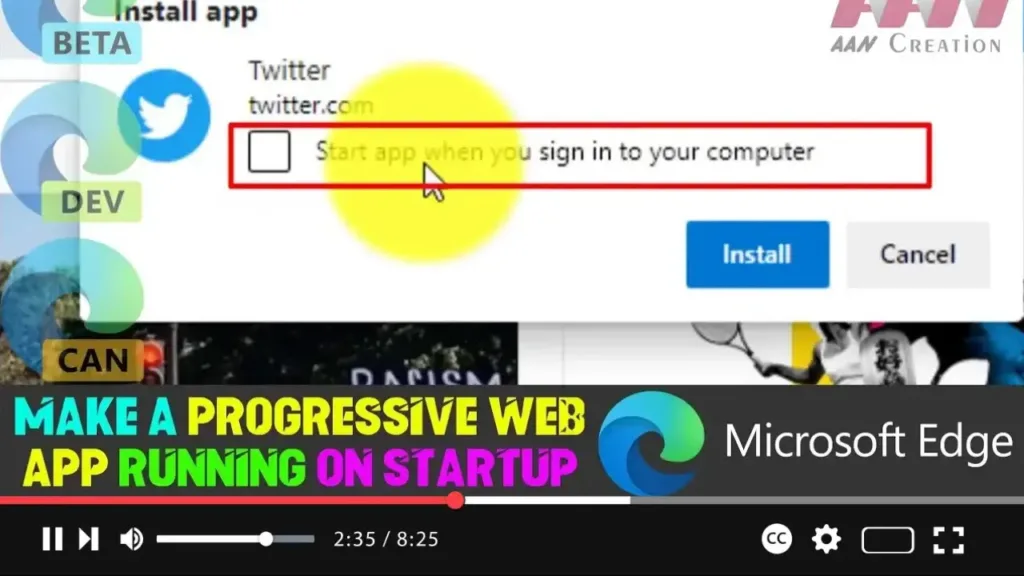

Microsoft Edge has introduced a feature that allows you to register Progressive Web Apps (PWAs) to start automatically when you log in to Windows 10. This capability was first implemented in Google Chrome and has now made its way to Microsoft Edge. PWAs are web applications that use modern web technologies to function like native apps on your desktop. These apps can be launched directly from your desktop and provide a seamless experience, much like traditional applications.
Steps to Make a Progressive Web App Run on Startup
Step 1: Open Microsoft Edge
- Launch the Microsoft Edge browser on your Windows 10 computer.
Step 2: Enable Startup Option for PWAs
- In the Edge browser, type the following into the address bar:
edge://flags/#enable-desktop-pwas-run-on-os-login - Press Enter.
.webp)
Step 3: Activate the Feature
- On the resulting page, find the flag titled Desktop PWAs run on OS login.
- Set this flag to Enabled using the dropdown menu next to it.
Step 4: Restart Microsoft Edge
- After enabling the flag, restart the Microsoft Edge browser to apply the changes.
Step 5: Install a Progressive Web App
- Visit a website that offers a PWA, such as Twitter.
- Look for the install prompt in the Edge menu or address bar and select Install.
- During the installation, you will see a new option titled Start app when you sign in to your computer. Make sure to check this option to ensure the PWA runs on startup.
.webp)
Step 6: Confirm the PWA is Set to Run on Startup
- After installation, the PWA will be configured to start automatically when you log in to your computer.
Additional Tips
- Manage Startup Apps: If you want to manage your startup apps later, you can do so via the Task Manager or Settings > Apps > Startup.
- Remove PWAs from Startup: If you change your mind and want to remove the PWA from startup, simply disable the option in the PWA settings or uninstall the PWA.
This feature is particularly useful for frequently used web apps, ensuring they are ready to use as soon as you start your computer, providing a seamless and efficient workflow.

