
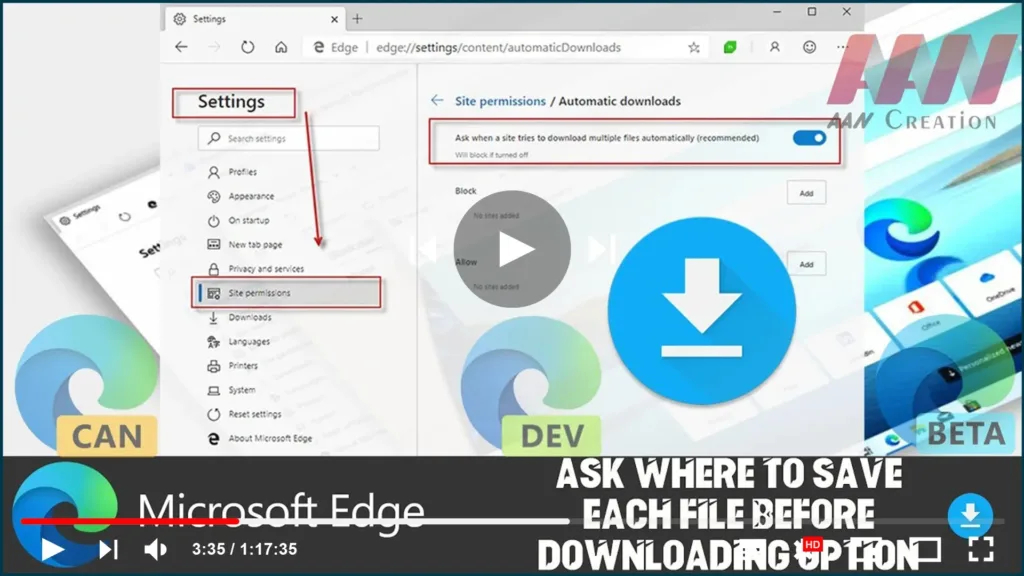

Microsoft Edge saves the files you download by default to your downloads
folder, which is usually set to C:Usersyou user nameDownloads. You
might want to change its behavior so that it prompts you for a location to
save each file you download.
folder, which is usually set to C:Usersyou user nameDownloads. You
might want to change its behavior so that it prompts you for a location to
save each file you download.
In this guide, you’ll learn the steps to how to make the Edge Chromium
browser always ask where to save each file before downloading.
browser always ask where to save each file before downloading.
01. Open Microsoft Edge.
02. Click the Settings and more (three-dotted) button in the top-right
corner.
03. Click on Settings.
04. On the left, click on Downloads.
(adsbygoogle = window.adsbygoogle || []).push({});

05. Turn on the Open tabs toggle and switch the Ask where to save each file
before downloading option.
Once you complete the steps, the Edge Chromium browser to always ask where
to save each file before downloading.

