

VLC Media Player is a free and open-source media player that can be
used on a variety of devices, including mobile phones and computers. It
supports a wide range of audio and video formats, including DVD, Video CD,
and AVI. Its most recent updates enable users to stream videos from YouTube.
Having said that, you can play a video directly in VLC by pasting the URL of
the YouTube video. There are several methods for streaming videos on
YouTube. It improves the streaming experience with VLC. It allows you to
remove annoying ads, chats, and comments from the interface. We should
double-check this because we’re going to talk about how to play YouTube
videos with VLC Media Player. Read on to find out how to watch YouTube
videos with VLC in a variety of ways.
rely on the latest VLC update. The update allows users to stream directly
from different video-sharing sites. In connection with this, go to the
tool’s network protocol window and just put the video’s link from YouTube.
Follow the steps below to learn how to stream on YouTube with VLC Media
Player.
Player website. Click the “Download VLC” button on the tool’s webpage to
download the installer, and then follow the installation instructions to
save the media player to your computer. After installation, launch the
media player to access the tool’s main interface.

02. Look at Video from YouTube
Next, open a new tab and navigate to video-sharing websites such as
YouTube. Then, in VLC, play the YouTube live stream that you want to watch
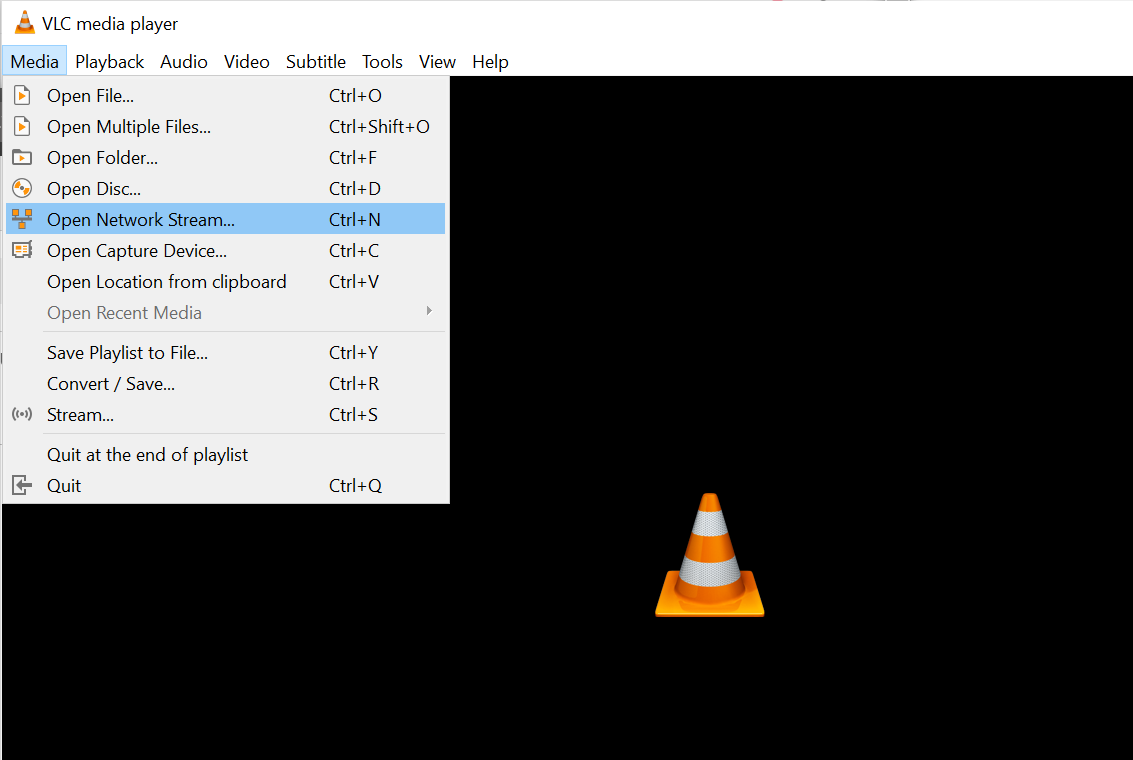
and copy the URL. Click the “Media” button in the upper left corner of the
tool’s interface to access the “Open Network Stream” menu.
03.
Stream YouTube Video with VLCthe Open Network Stream window. Finally, in the tool’s lower right
corner, click the “Play” button to begin streaming YouTube videos.
(adsbygoogle = window.adsbygoogle || []).push({});


