
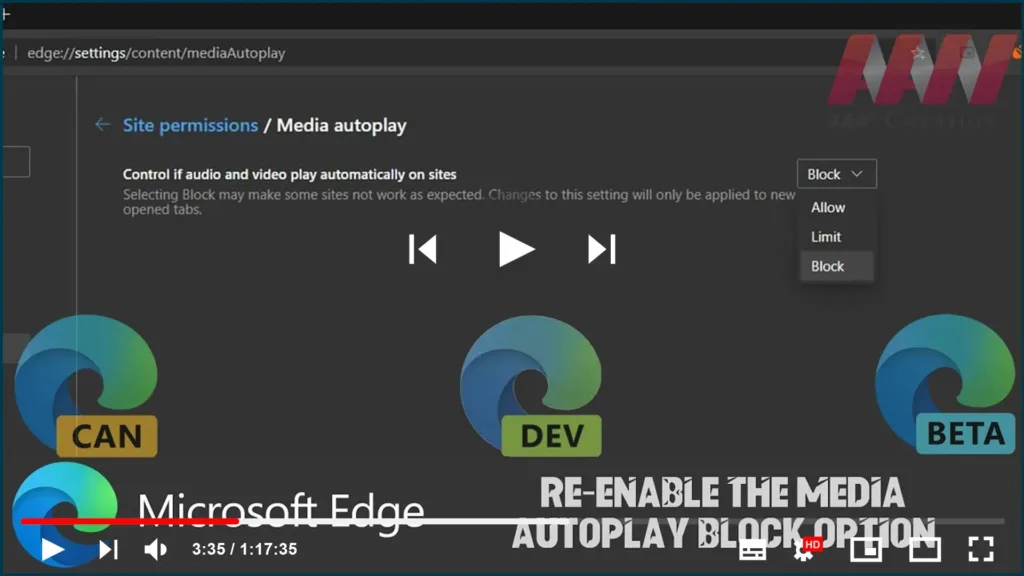

The latest update of the Chromium-based Microsoft Edge browser brought a change to the Media AutoPlay Blocking feature. Previously, the user could choose between Allow, Limit, and Block. Now the Block option is removed from the GUI and is hidden behind a flag.
In this guide, you’ll learn the steps to To re-enable the Media AutoPlay Block Option in the Chromium Version of Microsoft Edge.
01. Open Microsoft Edge Chromium.
02. Type the following path into the address bar and hit the Enter key.
edge://flags/#edge-autoplay-user-setting-block-option

03. Enable the flag Show block option in autoplay settings using the drop-down menu next to the flag name.
04. Relaunch the browser.

Now you can check on the Media AutoPlay Blocking feature. options list Allow, Limit, and Block.

