
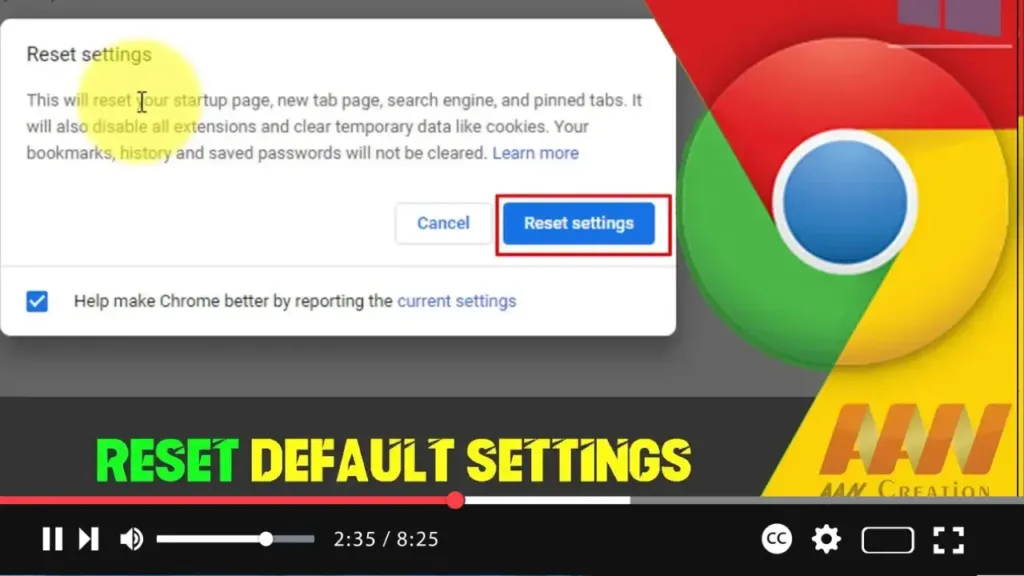

null Resetting your Chrome browser to its default settings can help resolve various issues such as slow performance, unexpected behavior, or the presence of unwanted extensions. This guide will walk you through the steps to reset Chrome to its original state.
Introduction
Over time, Chrome can accumulate a lot of extensions, cookies, and other settings that might affect its performance. Resetting Chrome to its default settings will remove these customizations, providing a clean slate without uninstalling the browser.
Steps to Reset Chrome Browser to its Default Settings
Step 01: Open Chrome Settings
Open Google Chrome. Click the three-dot menu icon in the top-right corner to open the Chrome menu. Select “Settings” from the dropdown menu.
.webp)
Step 02: Access Advanced Settings
Scroll down to the bottom of the Settings page and click on “Advanced” to expand the advanced settings options.
Step 03: Find the Reset and Clean Up Section
In the Advanced settings, scroll down until you find the “Reset and clean up” section.
.webp)
Step 04: Reset Settings
Click on “Restore settings to their original defaults.” A confirmation dialog will appear, explaining what will be reset.
Step 05: Confirm Reset
Click the “Reset settings” button to confirm. Chrome will then reset to its default settings, removing extensions, pinned tabs, custom settings, cookies, and site data. Your bookmarks, history, and saved passwords will not be deleted.
.webp)
Additional Information
What Happens When You Reset Chrome?
- Extensions and themes will be disabled.
- The default search engine will be reset to Google.
- The homepage and new tab page will be reset.
- Pinned tabs will be unpinned.
- Content settings will be reset to their defaults.
- Cookies and site data will be cleared.
- Default startup tabs will be cleared.
Why Reset Chrome?
- To resolve performance issues.
- To remove unwanted extensions or themes.
- To fix browser hijacking issues.
- To troubleshoot persistent errors or crashes.
.webp)
Backup Important Data
Before resetting, make sure to backup important data such as bookmarks and passwords. You can use Chrome’s sync feature to save your data to your Google account.
Conclusion
Resetting your Chrome browser can help resolve a variety of issues by returning it to its default state. This process removes unwanted extensions, resets settings, and clears out temporary data, providing a fresh start. Follow these steps to reset Chrome and enjoy a smoother browsing experience.

