
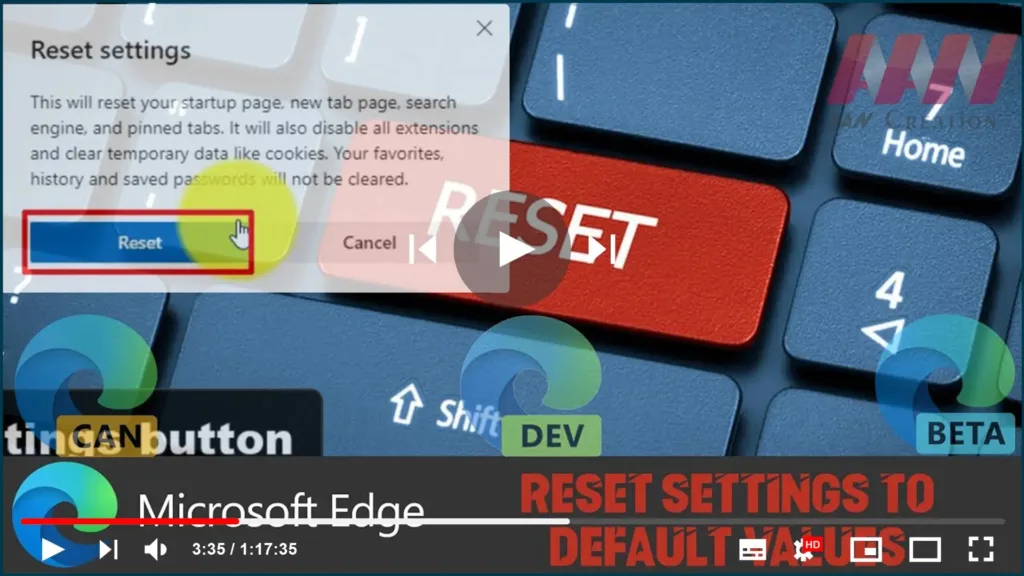

project, you can reset your settings at any time. You might need to do
this if you’re experiencing issues, or when an extension or app modified
your settings without your permission.
Edge for Windows 10 to their default values.
version of Microsoft Edge, use these steps:
01. Open Microsoft Edge.
02. Click the Settings and More (three-dotted) button on the top-right
corner.
03. Select the Settings option.
04. Click on Reset settings.
(adsbygoogle = window.adsbygoogle || []).push({});

05. Click the Restore settings to their default values option.
06. Click the Reset settings button.
07. Click the Reset settings button.
Once you complete the steps, the browser will reset the startup page,
new tab page, search engine, and pinned tabs. In addition, this action will
disable all your extensions and clear the browsing data. However, your
favorites, history, and passwords will not be deleted. If you need to delete
this data as well, you’ll need to do it from the Profiles page and delete
your current profile.
While we’re focusing this guide on Windows 10, you can also use these steps
to create additional Microsoft Edge profiles for Windows 8.1, Windows 7, and
macOS.

