
.webp)
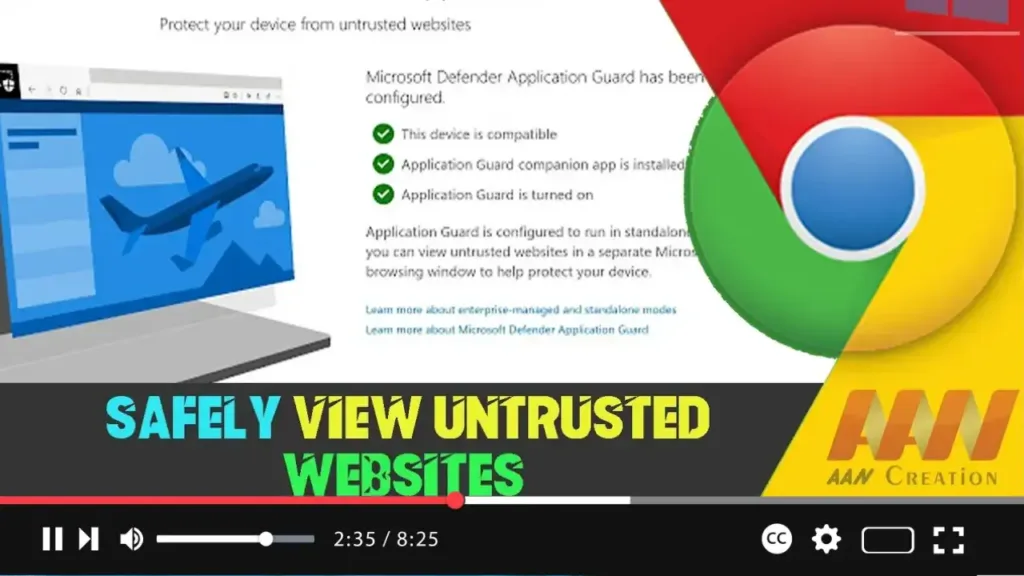
Viewing untrusted websites can expose your computer to various security risks, including malware and phishing attacks. To mitigate these risks, you can use Microsoft Defender Application Guard, a feature that allows you to safely browse untrusted websites in an isolated environment. This guide will walk you through the steps to safely view untrusted websites on Google Chrome using Microsoft Defender Application Guard on Windows 10.
Introduction
Microsoft Defender Application Guard creates a secure, isolated environment where you can open and interact with potentially harmful websites without risking the security of your main operating system. By leveraging this feature, you can ensure that any malicious content remains contained within the isolated session.
Steps to Safely View Untrusted Websites on Chrome Using Microsoft Defender Application Guard
Step 01: Enable Microsoft Defender Application Guard
Before using Application Guard, you need to ensure it is enabled on your Windows 10 device.
Open the Start menu and type “Windows Features.”
Select “Turn Windows features on or off” from the search results.
In the Windows Features dialog box, scroll down and check the box next to “Microsoft Defender Application Guard.”
Click “OK” and restart your computer if prompted.
.webp)
Step 02: Install the Application Guard Extension for Chrome
Open Google Chrome on your Windows 10 device.
Go to the Chrome Web Store and search for “Application Guard.”
Install the “Application Guard for Edge” extension, which also supports Chrome.
Microsoft Defender Application Guard Extension: http://bit.ly/3aBuwwe
https://www.microsoft.com/store/productId/9N8GNLC8Z9C8
.webp)
Step 03: Configure Application Guard Settings
Open the Start menu and type “Windows Security.”
Select “Windows Security” from the search results.
In the Windows Security window, click on “App & browser control.”
Under the “Isolated browsing” section, click on “Install Microsoft Defender Application Guard.”
Follow the on-screen instructions to complete the setup.
Step 04: Use Application Guard to View Untrusted Websites
Open Google Chrome and navigate to the untrusted website you want to view.
Click on the Application Guard extension icon in the Chrome toolbar.
Select “Open in Application Guard” from the dropdown menu.
Chrome will open a new isolated browsing session where you can safely interact with the untrusted website.
.webp)
Additional Information
Benefits of Using Microsoft Defender Application Guard
- Enhanced Security: Application Guard isolates potentially harmful websites in a secure environment, preventing them from affecting your main system.
- Protection from Malware: By containing malicious content, Application Guard helps protect your device from malware and other threats.
- Peace of Mind: Users can browse untrusted websites without worrying about compromising their computer’s security.
Considerations
- Performance Impact: Running Application Guard may have a slight impact on performance due to the isolated environment.
- Limited Features: Some browser features may be restricted or unavailable within the isolated session.
Conclusion
Using Microsoft Defender Application Guard with Google Chrome is an effective way to safely view untrusted websites on your Windows 10 device. By following the steps outlined above, you can leverage this feature to enhance your browsing security and protect your computer from potential threats. For the best protection, regularly update your security settings and stay informed about new security features and practices.

