


Windows 10 provides a range of customization options to personalize your
desktop experience. One such feature is the ability to set the accent
color, which affects various elements of the user interface. In this
article, we will guide you through the steps to set the accent color based
on the background image in Windows 10. This feature allows your desktop to
dynamically adjust its color scheme to match the predominant colors in
your chosen background, providing a visually cohesive and harmonious
look.
desktop experience. One such feature is the ability to set the accent
color, which affects various elements of the user interface. In this
article, we will guide you through the steps to set the accent color based
on the background image in Windows 10. This feature allows your desktop to
dynamically adjust its color scheme to match the predominant colors in
your chosen background, providing a visually cohesive and harmonious
look.
Step 1: Open the Settings App
Click on the Start menu and select the “Settings” (gear icon) option.
Alternatively, you can press the Windows key + I on your keyboard to open
the Settings app directly.
Alternatively, you can press the Windows key + I on your keyboard to open
the Settings app directly.
Step 2: Access the Personalization Settings
In the Settings app, click on the “Personalization” category.
Step 3: Choose the Colors Option
In the left-hand menu of the Personalization settings, click on the
“Colors” option.
“Colors” option.
Step 4: Enable the “Automatically pick an accent color from my
background” Option
background” Option
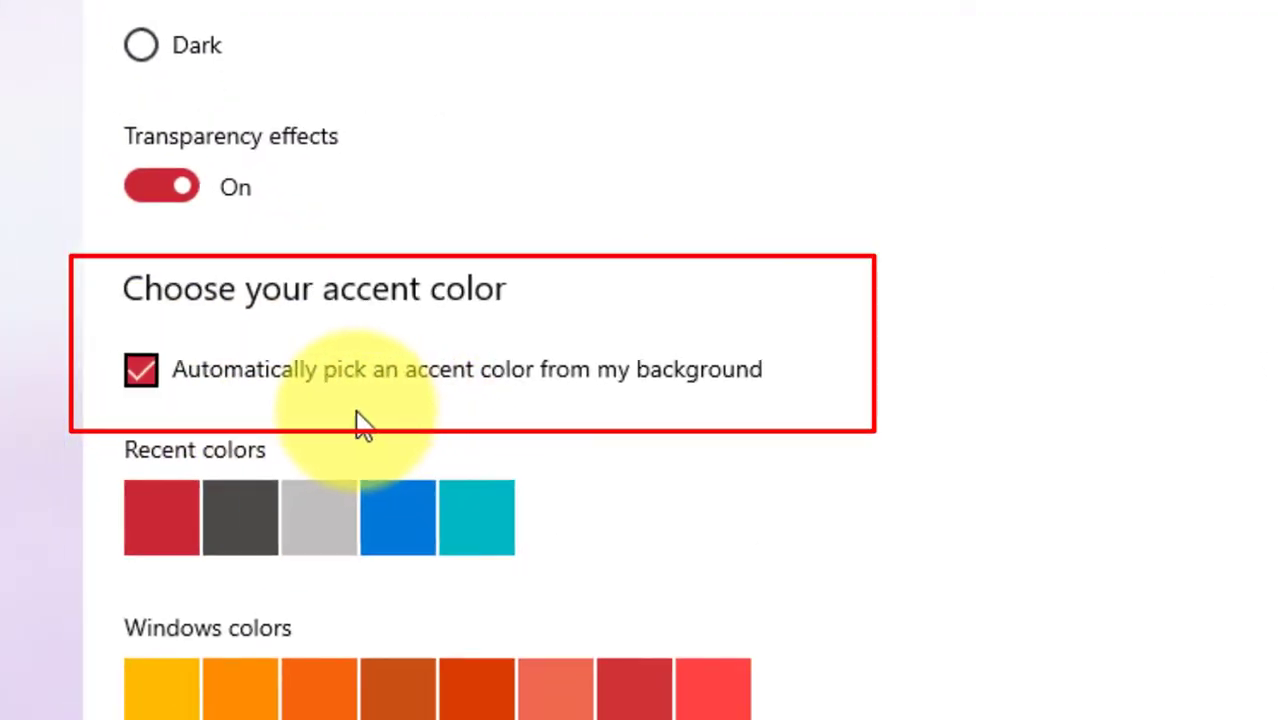
Under the “Choose your color” section, locate the toggle switch labeled
“Automatically pick an accent color from my background.” Enable this
option by clicking on the toggle switch to the “On” position.
“Automatically pick an accent color from my background.” Enable this
option by clicking on the toggle switch to the “On” position.
(adsbygoogle = window.adsbygoogle || []).push({});
Step 5: Observe the Accent Color Change
Once you have enabled the option, the accent color on your desktop will
automatically adjust based on the predominant colors in your selected
background image. Windows will analyze the colors and dynamically update
the accent color accordingly.
automatically adjust based on the predominant colors in your selected
background image. Windows will analyze the colors and dynamically update
the accent color accordingly.
Step 6: Customize Additional Color Settings (Optional)
If desired, you can further customize your accent color by enabling or
disabling additional settings on the Colors page. For example, you can
choose whether to show the accent color on the Start menu, taskbar, and
action center.
disabling additional settings on the Colors page. For example, you can
choose whether to show the accent color on the Start menu, taskbar, and
action center.
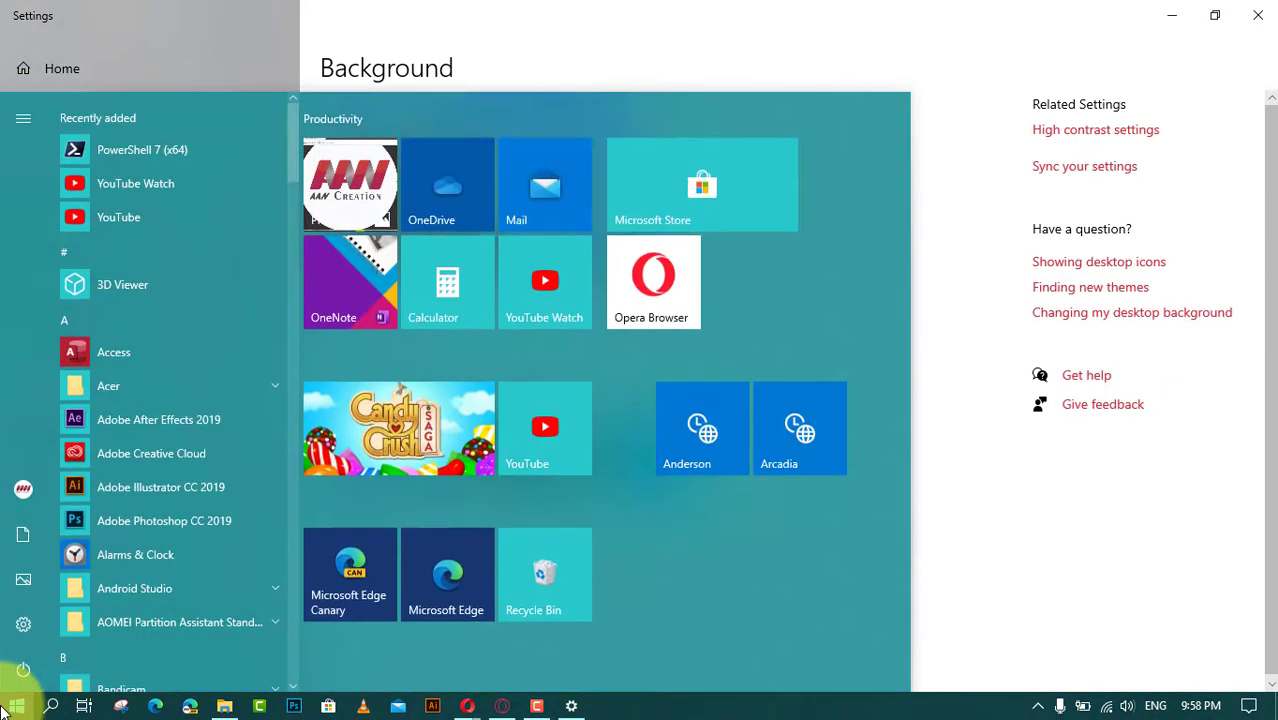
Step 7: Select a New Background Image (Optional)
If you want to change the background image, navigate to the “Background”
category in the Personalization settings. Choose an image or browse for a
new one, and Windows will adjust the accent color based on the new
background.
category in the Personalization settings. Choose an image or browse for a
new one, and Windows will adjust the accent color based on the new
background.
Customizing the accent color based on the background image in Windows 10
adds a touch of personalization and visual harmony to your desktop
environment. By following the steps outlined in this article, you can set
your accent color to dynamically adapt based on the predominant colors in
your chosen background image. Enjoy a cohesive and aesthetically pleasing
desktop experience that reflects your unique style and preferences.
adds a touch of personalization and visual harmony to your desktop
environment. By following the steps outlined in this article, you can set
your accent color to dynamically adapt based on the predominant colors in
your chosen background image. Enjoy a cohesive and aesthetically pleasing
desktop experience that reflects your unique style and preferences.

