
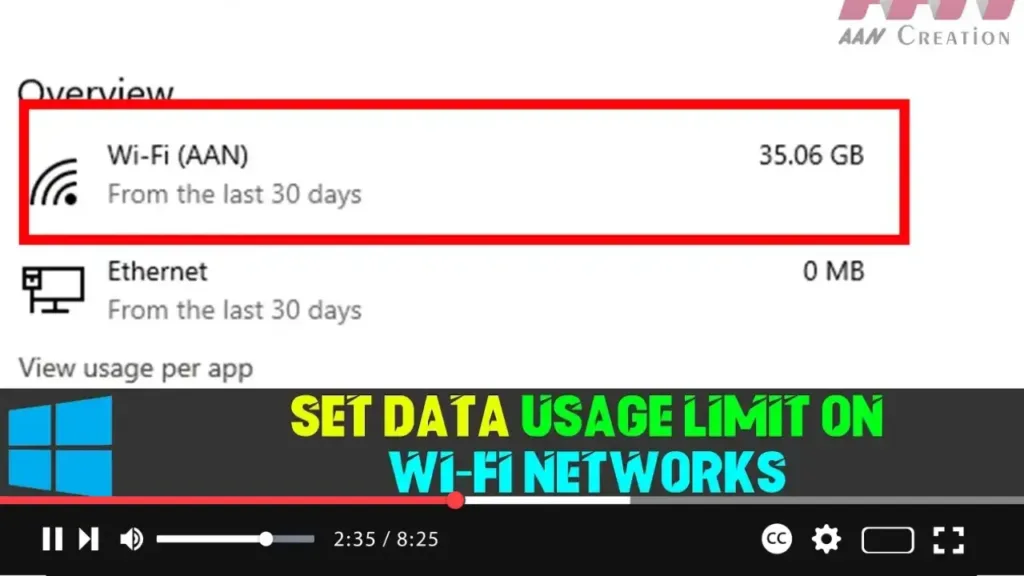

Windows 10 offers several features to help manage data usage, and with version 1803, it introduced the ability to set data usage limits for Wi-Fi and Ethernet connections. This is particularly useful for those on metered connections to avoid extra charges by monitoring their data consumption.
If you’re connected to a Wi-Fi network with a limited data plan, setting a data usage limit can help you keep track of your data usage and receive notifications when you’re approaching your limit. This way, you can prevent overage charges or manage your consumption more effectively.
Steps to Set Data Usage Limit on Wi-Fi Networks:
Step 01:
Open Settings by clicking the Start menu and selecting the gear icon or pressing Windows key + I.
Step 02:
Go to Network & Internet.
.webp)
Step 03:
Select Data usage from the left-hand sidebar.
Step 04:
Under the “Show settings for” drop-down menu, choose the Wi-Fi network adapter that you want to monitor.
Step 05:
Click the Set limit button.
Step 06:
Under the “Limit type” section, select the type of limit you want to set:
- Monthly: Use this to monitor your data on a monthly cycle. You can set a reset date each month.
- One time: Monitor data usage for a one-time period, useful for short-term limits.
- Unlimited: This monitors data usage continuously without a specific cap, but resets monthly for reference purposes.
.webp)
Step 07:
If you select the Monthly or One time limit, you’ll need to specify the reset date (for Monthly) or expiration date (for One time).
- Monthly Reset Date: Choose the day of the month when the data usage limit should reset.
- Data Expiry Date: For the one-time limit, select the day when the period should end.
Step 08:
Enter the data limit in MB or GB, depending on how much data your plan allows. For example, if you have a 10GB data plan, enter 10 GB.
Step 09:
Click the Save button to apply your settings.
.webp)
Additional Tips and Advanced Details:
-
Background Data: To further control your data usage, you can manage how Windows and other apps use data in the background. Under the Background data section, you can turn off background data for apps to help save data, especially when you’re approaching your limit.
-
Toast Notifications: When you approach your set data limit, Windows 10 will send a notification (also known as a toast notification) to warn you that you’re nearing your limit. This is a convenient way to manage data without constantly checking the settings.
-
Multiple Connections: If you use both Wi-Fi and Ethernet, you can set separate limits for each connection. This is useful if you use different networks with varying data caps.
-
Data Monitoring: Once you set the limit, the system will actively monitor data usage in real time, providing stats and trends on how much data has been used within the chosen timeframe.
By setting a data limit, you can avoid unexpected data usage spikes and better control your internet consumption, ensuring you stay within your plan’s limits without additional costs.

