
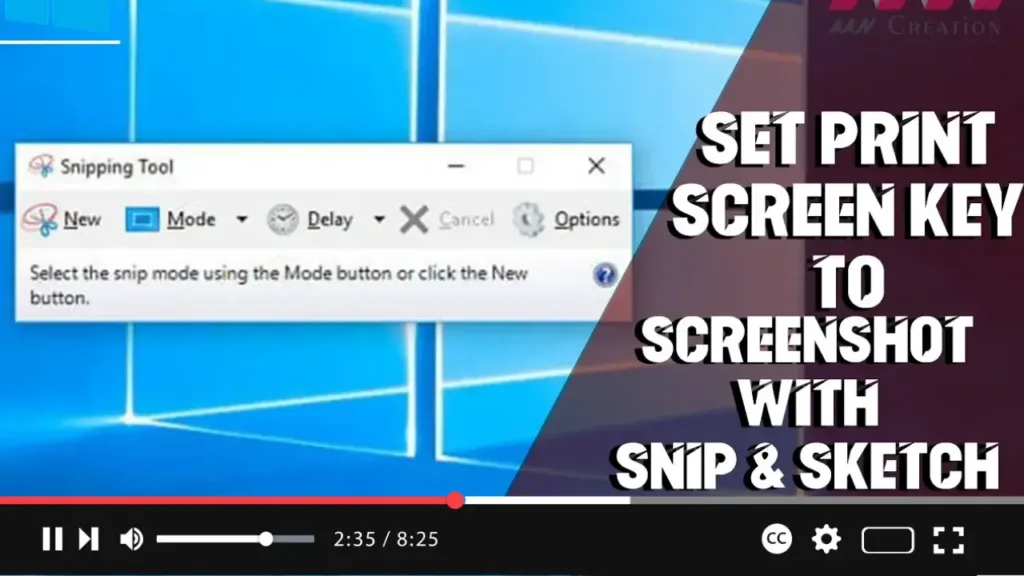

The Snip & Sketch tool on Windows 10 is a convenient way to take screenshots and annotate them. You can set the Print Screen key to launch Snip & Sketch, making it easier to capture and edit your screen quickly. This guide will show you the steps to configure the Print Screen key to open Snip & Sketch.
Introduction
Configuring the Print Screen key to open Snip & Sketch enhances your screenshot experience on Windows 10. This feature allows you to quickly capture your screen and use the Snip & Sketch tool for editing and sharing your screenshots.
Steps to Set Print Screen Key to Screenshot with Snip & Sketch
Step 01: Open Settings
Open the Start menu and click on the gear icon to open the Settings app. Alternatively, you can press Windows key + I to directly open Settings.
Step 02: Access Ease of Access Settings
In the Settings window, click on “Ease of Access” to access settings related to accessibility.
Step 03: Configure the Keyboard Settings
Scroll down the left sidebar and select “Keyboard” under the Interaction section.
.webp)
Step 04: Enable the Print Screen Shortcut
In the “Keyboard” settings, scroll down to the “Print Screen shortcut” section. Toggle the switch under “Use the PrtScn button to open screen snipping” to the On position.
Additional Information
Benefits of Using Snip & Sketch:
- Convenience: Quickly access Snip & Sketch with a single key press.
- Versatility: Capture different types of screenshots, including full screen, window, and freeform snips.
- Editing Tools: Annotate, highlight, and crop your screenshots directly within Snip & Sketch.
.webp)
Considerations:
- Shortcut Conflicts: If you have other applications that use the Print Screen key, ensure that setting it to open Snip & Sketch does not interfere with those applications.
- Snip & Sketch Version: Ensure you have the latest version of Snip & Sketch installed for the best experience and features.
Conclusion
By following these steps, you can set the Print Screen key to open Snip & Sketch on Windows 10. This configuration allows you to quickly capture and edit screenshots, enhancing your productivity and workflow.

