
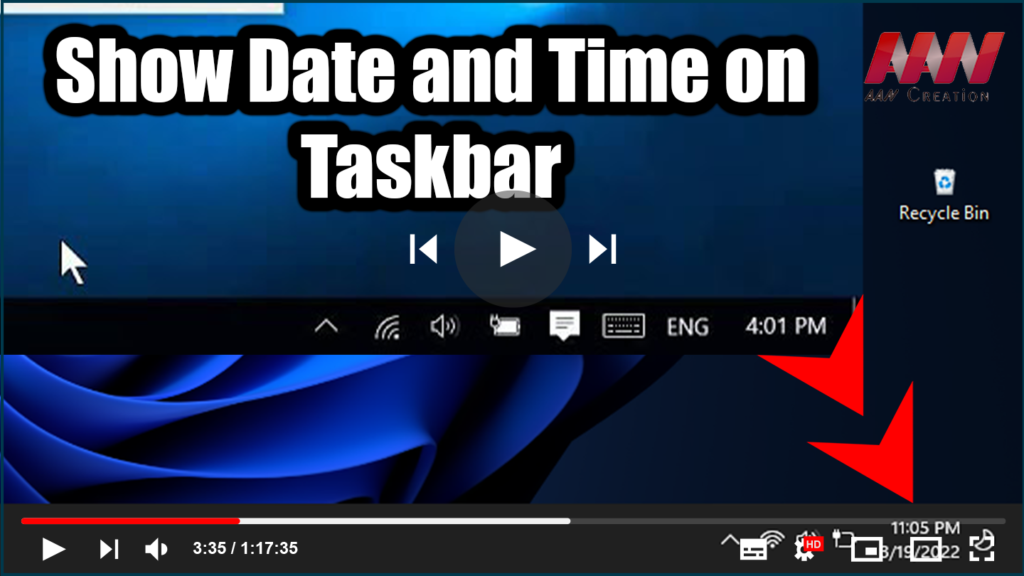

You’ve been modifying your computer, maybe even, Installed a fresh copy
of Windows 10, and now you want to have the dashboard showing all the
essentials in the taskbar.
of Windows 10, and now you want to have the dashboard showing all the
essentials in the taskbar.
In the taskbar, You can make plans to see the date and time, system
icons, and programs running in the background.
icons, and programs running in the background.
The taskbar is customizable to your needs, allowing you to manage your
calendar and access your favorite applications, all from one place. You
can customize its size, appearance, and location on the screen, as well as
group buttons together.
calendar and access your favorite applications, all from one place. You
can customize its size, appearance, and location on the screen, as well as
group buttons together.
When it comes to preferences, different users have different preferences
– some prefer a cleaner desktop, while others prefer to have everything at
their fingertips.
– some prefer a cleaner desktop, while others prefer to have everything at
their fingertips.
(adsbygoogle = window.adsbygoogle || []).push({});
And, while the taskbar can be hidden, the topic of modifying the taskbar
width and the size of the icons or displayed details is still a very hot
one.
width and the size of the icons or displayed details is still a very hot
one.
How can I show the date in the system tray in small icons?
01. Right-click anywhere on the taskbar.
02. From the menu, select Taskbar settings.

03. In the settings windows, look for Use small taskbar
buttons.
buttons.

04. Check the option and the taskbar icons will automatically change
to small ones. This action is undoable, of course. And while you are
in the taskbar settings menu, You can also look around and change
other settings as you see fit.
to small ones. This action is undoable, of course. And while you are
in the taskbar settings menu, You can also look around and change
other settings as you see fit.

(adsbygoogle = window.adsbygoogle || []).push({});
After that, you can re-lock the taskbar to ensure that you don’t
change anything by accident.
change anything by accident.
It should be noted that by selecting this option, you will no longer
be able to see the date, but hovering the mouse over time will show
the date. You can open the calendar by clicking on it.
be able to see the date, but hovering the mouse over time will show
the date. You can open the calendar by clicking on it.

