
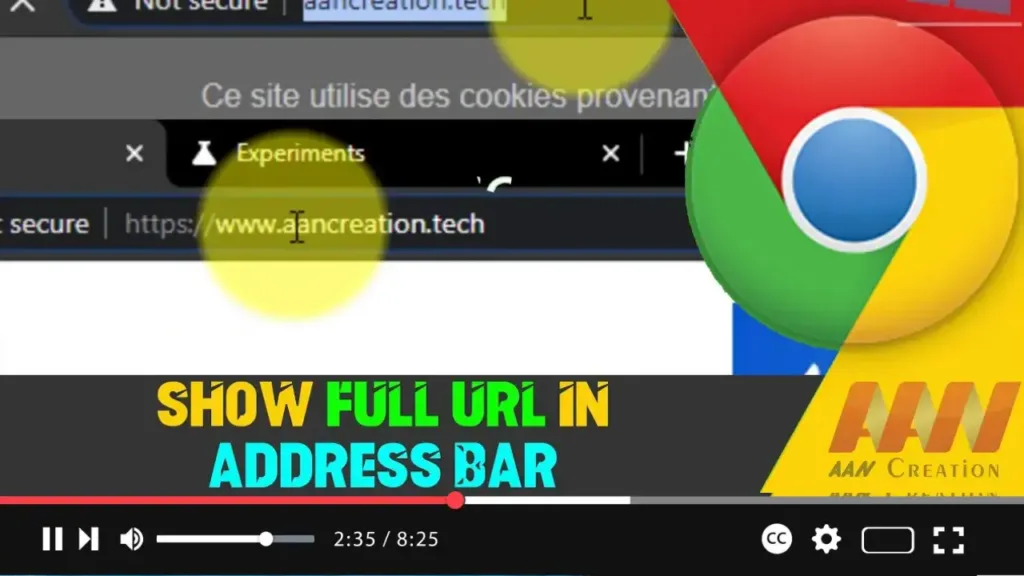

Google Chrome, by default, hides the “http://” or “https://” and “www” parts of URLs in the address bar. This can be less convenient for users who prefer seeing the full URL for clarity and security reasons. Fortunately, you can configure Chrome to display the full URL in the address bar. This guide will show you how to do it.
Introduction
Displaying the full URL in Chrome’s address bar can help you quickly verify the website’s protocol and subdomain, ensuring you are on a secure and correct webpage. It also provides a complete view of the URL, which is useful for copying and sharing.
Steps to Show Full URL in Address Bar on Chrome Browser
Step 01: Open Google Chrome
Launch Google Chrome on your Windows, macOS, or Linux device.
Step 02: Access Chrome Flags
Type chrome://flags in the address bar and press Enter. This will take you to the Chrome Flags page, where you can enable experimental features.
.webp)
Step 03: Search for the Omnibox Context Menu Show Full URLs Flag
In the search box at the top of the Flags page, type context menu show full URLs.
Step 04: Enable the Flag
Find the “Omnibox Context Menu Show Full URLs” flag in the search results.
Click the dropdown menu next to it and select “Enabled.”
Step 05: Relaunch Chrome
Click the “Relaunch” button at the bottom of the page to restart Chrome and apply the changes.
Step 06: Show Full URL from the Address Bar
After Chrome restarts, right-click the address bar.
Select “Always show full URLs” from the context menu.
.webp)
Additional Information
Benefits of Showing Full URLs
- Security: Ensures you see the full protocol (http or https) and subdomains, which can help identify phishing sites.
- Clarity: Provides a clear and complete view of the website address, making it easier to verify and share.
- Convenience: Avoids confusion when copying URLs for sharing or bookmarking.
Considerations
- User Preference: Displaying full URLs is a matter of personal preference. Some users may prefer the cleaner look of simplified URLs.
- Flag Availability: Chrome Flags are experimental features and may not be available in all versions of Chrome. Ensure your Chrome browser is up to date.
Conclusion
By following these steps, you can configure Google Chrome to show the full URL in the address bar, enhancing clarity and security while browsing. This adjustment ensures you have complete visibility of the website addresses you visit, making your browsing experience more transparent and secure.

