
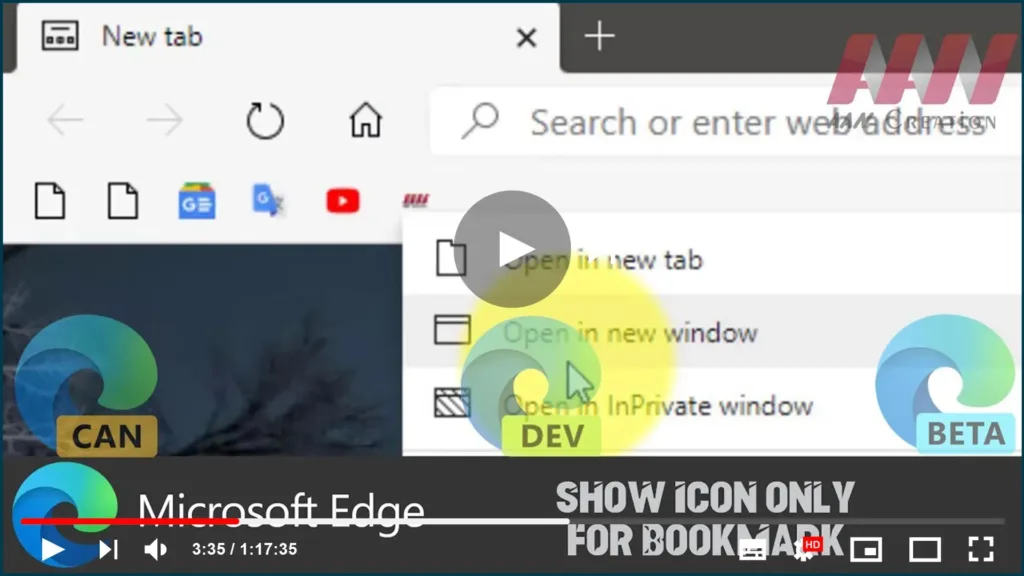

Another new feature is now available in Microsoft’s brand new Chromium-based Edge browser. For a bookmark in the favorites bar, you can enable icon-only mode.
This feature must be already familiar to users of the classic Microsoft Edge app. In the Edge Chromium roadmap, Microsoft mentioned its intention to implement the same functionality in the new app.
Finally, it is available in the context menu of a bookmark in the favorites bar. By enabling the Show Icon Only option for bookmarks in the address bar, you can make it more compact and slim. This can be useful on devices with small display sizes.
In this guide, you’ll learn the steps to Show Icon Only for Bookmark in Microsoft Edge Chromium.
01. Open Microsoft Edge Chromium.
02. Enable the favorites bar if needed.
03. Right-click on a bookmark you want to show as icon-only.

04. Select the Show icon only from the context menu.
Repeat the step above for all bookmarks you want to show as icons.

