
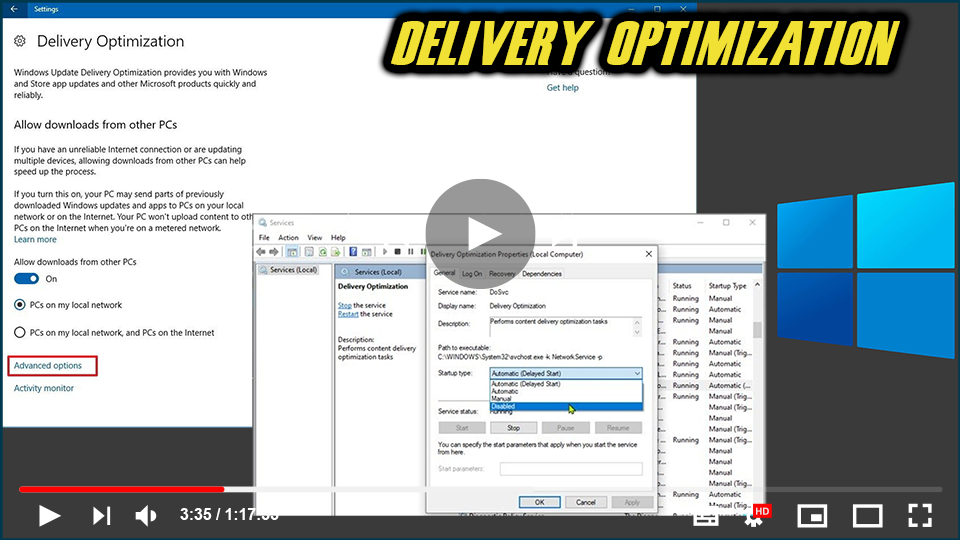

Windows Update Delivery Optimization helps you get Windows
updates & Microsoft Store applications more quickly &
reliably. With the settings described in this article, you have
complete control over whether or not to use Delivery
Optimization.
updates & Microsoft Store applications more quickly &
reliably. With the settings described in this article, you have
complete control over whether or not to use Delivery
Optimization.
How Delivery Optimization works

Windows Update Delivery Optimization works by letting you get
Windows updates & Microsoft Store applications from sources in
addition to Microsoft, like other PCs on your local network, or
Internet-connected PCs downloading the same files. Delivery
Optimization also sends updates & applications from your PC to
other PCs on your local network or PCs on the Internet, depending
on the settings. Sharing this data between PCs helps slow down the
Internet bandwidth that’s needed to keep more than one device up
to date or can increase the number of successful downloads if your
Internet connection is slow or unreliable.
Windows updates & Microsoft Store applications from sources in
addition to Microsoft, like other PCs on your local network, or
Internet-connected PCs downloading the same files. Delivery
Optimization also sends updates & applications from your PC to
other PCs on your local network or PCs on the Internet, depending
on the settings. Sharing this data between PCs helps slow down the
Internet bandwidth that’s needed to keep more than one device up
to date or can increase the number of successful downloads if your
Internet connection is slow or unreliable.
When Windows downloads an update or application using Delivery
Optimization, it will look for other PCs on your local network (or
from the Internet, depending on your settings) that have already
downloaded that update or app. Windows do not download the entire
file from one place. Instead, the download is split into smaller
parts. Windows then gets parts of the update or application from
the PCs that have it, & parts from Microsoft. For each part,
Windows selects the fastest and most reliable download
source.
Optimization, it will look for other PCs on your local network (or
from the Internet, depending on your settings) that have already
downloaded that update or app. Windows do not download the entire
file from one place. Instead, the download is split into smaller
parts. Windows then gets parts of the update or application from
the PCs that have it, & parts from Microsoft. For each part,
Windows selects the fastest and most reliable download
source.
Delivery Optimization creates a local cache, & stores the
file that it has downloaded in that cache for a short period of
time.
file that it has downloaded in that cache for a short period of
time.
How we help keep your data safe
Personal content cannot be downloaded or sent using Delivery
Optimization. Delivery Optimization does not access your personal
files or folders, & it does not change any files on the
PC.
Optimization. Delivery Optimization does not access your personal
files or folders, & it does not change any files on the
PC.

(adsbygoogle = window.adsbygoogle || []).push({});
Delivery Optimization downloads the same updates &
applications that you would get through Windows Update &
Microsoft Store, using the same security measures. To make sure
you are getting authentic updates, Delivery Optimization gets
information securely from Microsoft to check the authenticity of
each part of an update or application that it downloads from other
PCs. Before installing, the downloads’ authenticity is
double-checked.
applications that you would get through Windows Update &
Microsoft Store, using the same security measures. To make sure
you are getting authentic updates, Delivery Optimization gets
information securely from Microsoft to check the authenticity of
each part of an update or application that it downloads from other
PCs. Before installing, the downloads’ authenticity is
double-checked.
How to control Windows Update Delivery Optimization

To stop downloading updates & applications from or sharing
updates & apps to other Windows 10 devices on the
Internet:
updates & apps to other Windows 10 devices on the
Internet:
01. Select the Start button, then select Settings ➡ Update &
Security ➡ Windows Update ➡ Advanced options.
Security ➡ Windows Update ➡ Advanced options.
02. Select Delivery Optimization (or Choose how Windows 10
updates were delivered in previous versions).
updates were delivered in previous versions).
03. Select PCs on my local network.
To prevent downloading or uploading to other PCs on the local
network, do the following:
network, do the following:

(adsbygoogle = window.adsbygoogle || []).push({});
01. Select the Start button, then select Settings ➡ Update &
Security ➡ Windows Update ➡ Advanced options.
Security ➡ Windows Update ➡ Advanced options.
02. Delivery Optimization.
3. Make sure Allow downloads from other PCs are turned Off. You
will get updates & applications directly from Windows Update
& from Microsoft Store with Delivery Optimization; although,
you won’t download from or upload to other PCs.
will get updates & applications directly from Windows Update
& from Microsoft Store with Delivery Optimization; although,
you won’t download from or upload to other PCs.
If you use a metered or capped Internet connection, Delivery
Optimization will not download or send parts of updates or apps to
other PCs on the Internet automatically.
Optimization will not download or send parts of updates or apps to
other PCs on the Internet automatically.
To determine whether a Wi-Fi or Ethernet connection is metered
or capped, do the following:
or capped, do the following:

1. Select the Start button, then select Settings.
2. Select the Network & Internet ➡ Wi‑Fi.
2. Select the network you’re using, and then turn on Set as
metered connection.
metered connection.

