
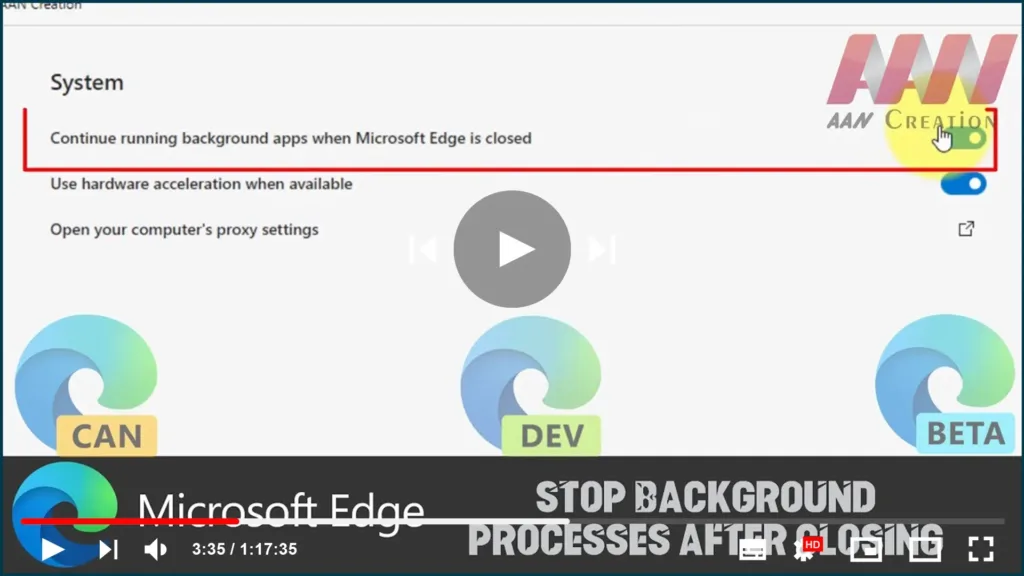

Edge Browser, extensions & other features can remain the edge app running in the background even after it’s closed. While this may not be a problem for most desktop PCs, it could be a problem for laptops and low-end devices as these background processes can increase battery consumption and memory usage.
If we’re using the Microsoft Edge Chromium with a lot of extensions or websites with the push notification feature enabled, we can disable the feature to prevent the browser from staying awake and running in the background after closing it to improve system performance on Windows 10.
In this guide, you’ll learn the steps to prevent the Chromium Edge browser from continuing to run processes in the background after it’s closed to save system resources and improve battery life.
01. Open Microsoft Edge.
02. Click the Settings and more (three-dotted) button from the top-right.
03. Select the Settings option. and Click on System.
04. Turn off the Continue running background apps when Microsoft Edge is closed toggle switch.

Once you complete the steps, when closing the browser, extensions and other services will also be terminated, freeing up resources and improving battery life.
If you change your mind, you can always revert the changes using the same instructions, but on the last step make sure to turn on the toggle switch for the feature.

