

Recording videos on smartphones or digital cameras often results in longer-than-expected footage, with moments that you might want to remove. Thankfully, you don’t need to install third-party software to trim your videos. The Windows 10 Photos app includes a built-in video editor that makes it easy to trim video files without spending money on additional software.
The Photos app not only functions as a photo viewer but also includes features that allow for basic video editing, including trimming, adding filters, and more. Whether you’re removing unwanted footage or cutting a large video into shorter segments, this tool can handle it all.
Steps to Trim Video Using Windows 10’s Photos App
Follow these steps to easily trim a video using the Windows 10 Photos app:
Step 01: Open the Video with the Photos App
- Right-click on the video file you want to trim.
- Select Open with and choose Photos from the options.

Step 02: Access the Trim Function
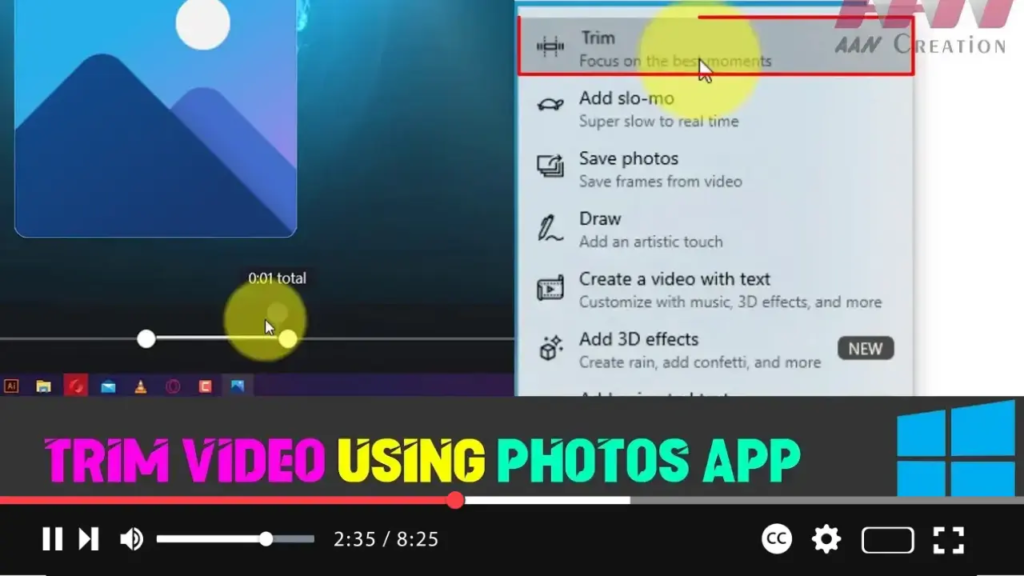
- Once the video opens in the Photos app, click on the Edit & Create button located at the top-right corner of the screen.
- From the drop-down menu, select Trim.
Step 03: Select the Portion to Trim
- You’ll notice two white pins (left and right) on the video timeline at the bottom. Use these pins to mark the start and end points of the video you wish to keep.
- You can also use the blue scrubber pin to preview the footage and ensure you’re trimming the right part of the video.
Step 04: Save the Trimmed Video
- After selecting the portion of the video you want, click the Save a copy button in the top-right corner.
- The app will save the trimmed version as a new file, preserving the original video.

Additional External Details on Video Editing in Windows
The built-in video editor in the Windows 10 Photos app is a feature that many users overlook. It’s ideal for basic video editing tasks such as trimming, adding music, splitting videos, and inserting titles. The convenience of not having to download external programs makes it an accessible choice for users looking to perform simple edits.
However, for more complex editing, users might want to explore professional video editing tools like Adobe Premiere Pro, DaVinci Resolve, or even Microsoft’s own legacy app, Movie Maker. These offer advanced features such as transitions, layers, color correction, and much more.
Tip: If you frequently work with larger files or are looking to edit high-resolution videos, consider upgrading your system’s hardware—particularly the GPU (graphics processing unit)—to ensure smoother performance when using the Photos app or any other video editing software.
By following these steps, you can quickly trim your videos to remove unwanted sections, keeping only the content that matters most. Whether it’s a personal memory or professional project, Windows 10’s Photos app is a user-friendly solution for quick edits.

